Example applications
ckVision ships small, complete example applications that exercise the
library end to end rather than isolated widget demos. Each one lives
under examples/<name>/ as a plain library-linkable static target
(<name>_app) plus a thin main.cpp that attaches it to a real
terminal, so the exact same object graph an interactive user runs is
also what the headless test suite drives — a documentation screenshot
or a test failure both describe the real application, never a
simplified stand-in.
Every interactive example exposes an About command from its menu bar and
shows Copyright (c) 2026 C. Klukas. All rights reserved. in the resulting
dialog. Examples whose F1 key is contextual keep that help route separate from
About; smaller examples may use the same standard Help command for both. The
shared example-only formatter in examples/example_about.hpp keeps the legal
line exact without assigning ckVision's copyright to applications built by
library users.
Start with the pattern you need
This page is a visual tour. For construction and ownership, begin with the Hello tutorial and object model; then use the table below to choose a complete, compiled application to adapt. The source links are the actual files used by the interactive executable, headless tests, and screenshot capture tools.
| Example | Reuse this pattern | Main source | Visual guide |
|---|---|---|---|
| Hello | minimal shell, local commands, info dialog | hello_app.cpp | Hello tutorial |
| Gallery | general application shell with form, window, a scrolled image and a scheme menu | gallery_app.cpp | this page |
| File Browser | injected filesystem master/detail panes | filebrowser_app.cpp | Platform services |
| Layouts | responsive relationships and user splitter | layouts_app.cpp | Layout guide |
| Forms | validation, help, standard strings, wizard | forms_app.cpp | Dialogs |
| Root Dialog | a descriptor form as the whole application, no desktop or window | rootdialog_app.cpp | below |
| Echo | one custom full-screen view that shows every input event as a decoded line | echo_app.cpp | below |
| Progress Lab | interactive meter, activity, task and timing options | progress_lab_app.cpp | Advanced progress |
| Workbench | text/data/utility tabs, overlapping windows with a per-window theme, runtime key rebinding, a theme editor whose theme is saved | workbench_app.cpp | Widget gallery |
| Editor | shared document, YAML profile, gutter, editable source view | editor_app.cpp | Editor |
| Terminal | isolated child sessions, multi-window desktop controls, focus escape, scrollback, Sixel containment | terminal_app.cpp | Embedded terminal |
| SysInfo | injected host probe, live refresh, cancellable benchmarks, comparative charts, report export | sysinfo_app.cpp | SysInfo |
| TODO | persistent Kanban, custom views, full editor notes, optimistic multi-instance conflicts | todo_app.cpp | TODO |
| Graphics | ImageView/Canvas capability fallback | graphics_app.cpp | Graphics |
| Spin | animated raster content rendered off the owning thread | spin_app.cpp | Graphics |
Layouts
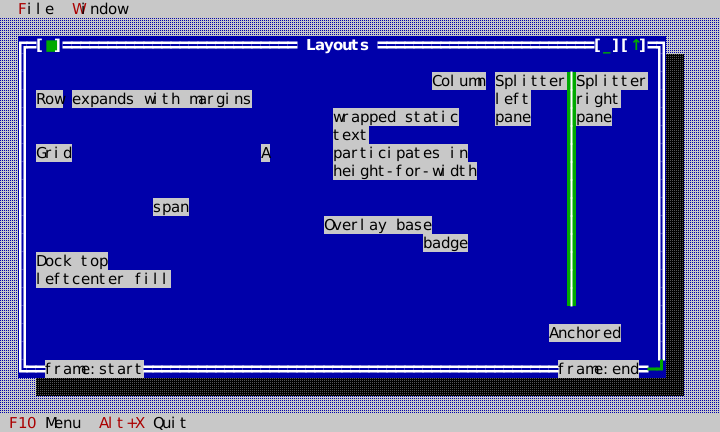
The Layouts app is a compact reference for containers rather than a synthetic test: it places the whole tree in a real Desktop window and is captured across resize states.
Forms
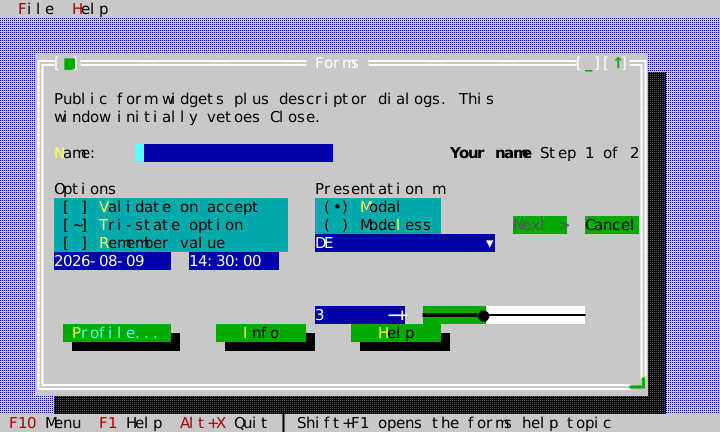
Forms puts field controls, a localized modal message, descriptor validation, context help, and state-dependent wizard flow into one normal application.
Workbench
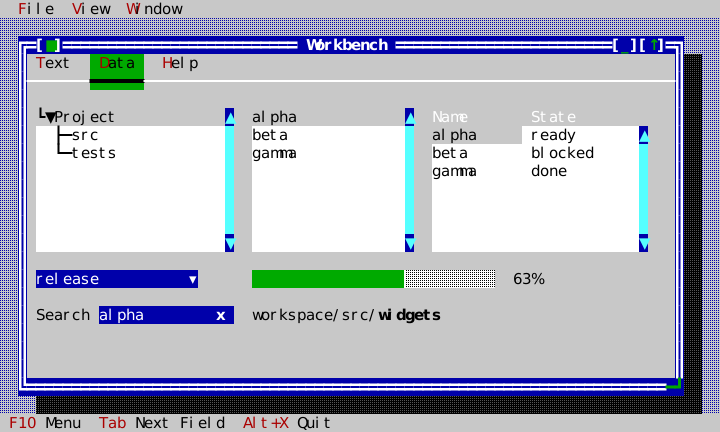
Workbench is an application template with text editing, data browsing, and
utility components on separate tabs. Window → Console opens a second,
overlapping window that keeps a dark theme of its own
(View::set_theme_override); the Window menu reaches both windows by cycling,
by number (Alt+1, Alt+2) and through the window list. File → Keys… rebinds
commands at runtime with KeyChordCapture: Enter on a row captures the next
key as that command's chord, and every menu and status item shows it from the
next frame on. View → Edit theme… opens the
theme editor over the
application's theme; accepting it installs the edited theme and saves its text
to ~/.ckvision/workbench.theme through the injected file system, and the next
start reads it back.
Editor
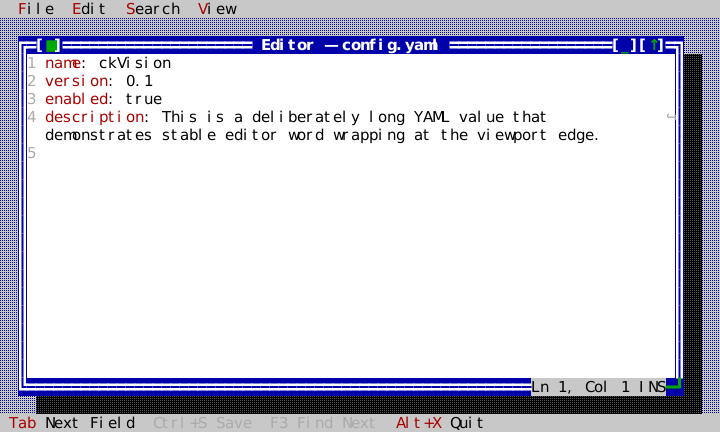
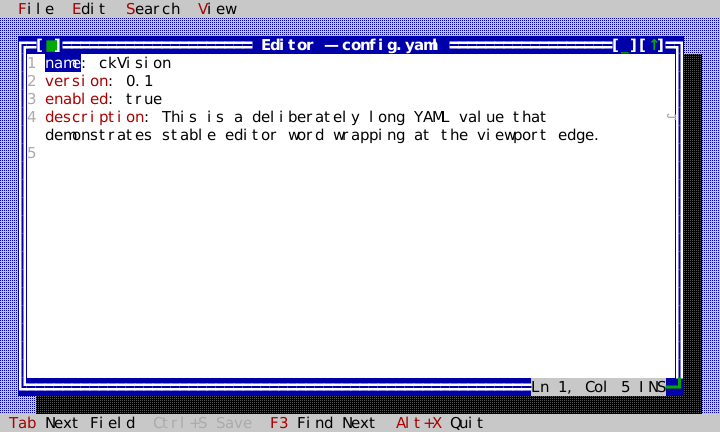
Editor is the source-editing reference: a shared revisioned document, YAML
profile selection, line-number gutter, and regular application chrome. Its
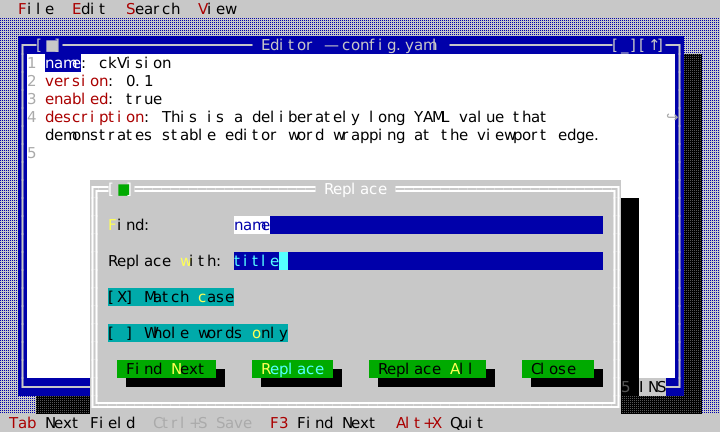
Replace dialog (Search → Replace..., Ctrl+R) replaces one match at a time or
all of them in one undo step, asking first in a confirmation raised on top of
the dialog. Its smoke suite drives replace, replace-all and undo/redo as
terminal event scripts, checks that the nested confirmation scopes events and
that focus comes back level by level, pins the dialog under all four schemes,
and scripts the mouse: wheel scrolling, a double click selecting a word, drag
selection, and resizing the window by its grip.
Its menus are the shipped demonstration of VISION 2 — every menu action
reachable by the keyboard alone and by the mouse alone. File holds a nested
submenu (Open Sample) and a row that cannot act on an unmodified document
(Save); Edit greys Cut and Copy while nothing is selected; View holds a
checkable row (Line Numbers, the registry's checked state of the
editor.toggle-line-numbers command) above the radio set of schemes; and the
editor opens its own context menu (Cut, Copy, Paste, Select All, Find
Selection) on a right click, Ctrl+click, the Menu key or Shift+F10.
tests/test_editor_menu_scripts.cpp plays two event scripts over the example
itself (tools/docgen/editor_menu_script.hpp), with the frames they reach
pinned in tests/golden/editor_menu_*.dump and written by
generate_editor_goldens:
| Script | What it drives |
|---|---|
| Keyboard alone | F10 onto the bar; Down onto the disabled Save, where Enter does nothing; Right into Open Sample's submenu, Left out and back; Esc once per level (submenu, dropdown, bar walk) with the focus back in the editor; Alt+V and Enter toggling Line Numbers off and on; Alt+F down into the submenu to open the JSON sample; Shift+F10 for the context menu at the caret with Cut and Copy greyed, Select All run from it, and the Menu key reopening it with them usable; Esc |
| Mouse alone | Press on File, drag along the bar to View and down onto Line Numbers, release to toggle it; a click opening File, a click on the disabled Save doing nothing, hovering into the submenu and clicking a sample; a press on the text with a menu open dismissing the whole menu system without moving the caret; a right click opening the context menu at the pointer and an outside click dismissing it |
Graphics
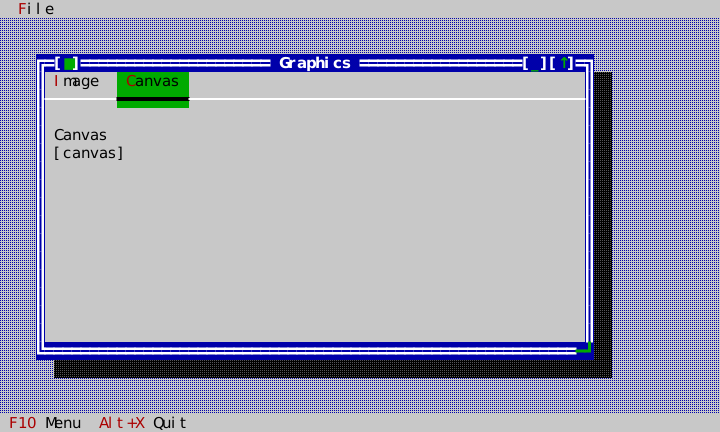
Graphics is the capability-paired reference: it presents the same public view tree under a Sixel profile and no-graphics profile.
Spin
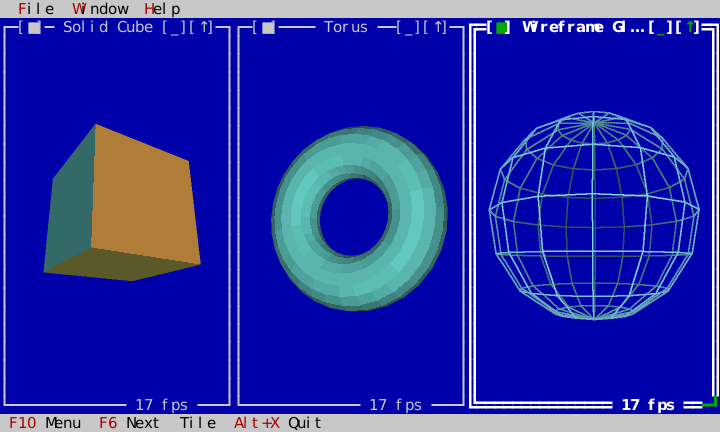
Spin is the moving-picture reference: a window per rotating solid, each frame rendered on a worker thread and shown by invalidating one view. Every frame is painted on its own window's resolved background color and sized to whole cells of the terminal's own metric, so the object sits in the window rather than on a rectangle laid over it.
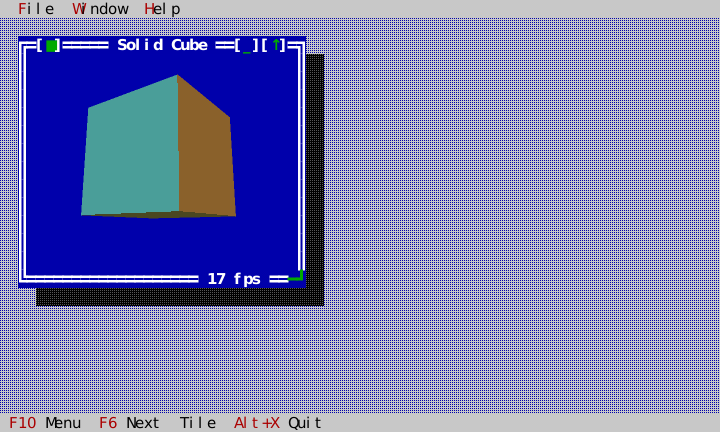
File ▸ New opens a window on any of six solids, and each window carries its
own delivered frame rate on its bottom border.
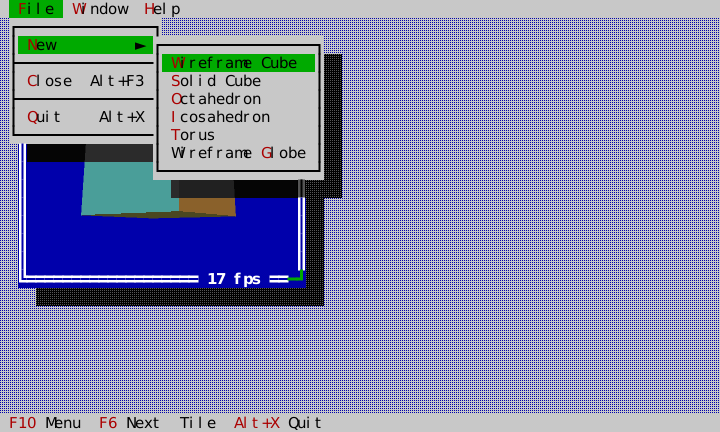
Windows are ordinary desktop windows: move them, resize them, tile them, and the next frame is rendered at the new pixel size.
SysInfo
SysInfo demonstrates a second injected platform service, live values refreshed
on a deterministic timer, and long work returned to the owning thread through
Application::post. Its benchmark pages distinguish measurements from
published interface ceilings, and its report exporter writes the same values
through the injected filesystem. Its smoke suite saves a report the way a reader
does: Report → Save as text... by its mnemonics, the file dialog walked through
the injected directories with the arrow keys and Enter, a file name typed into
the path field, and the written file read back.
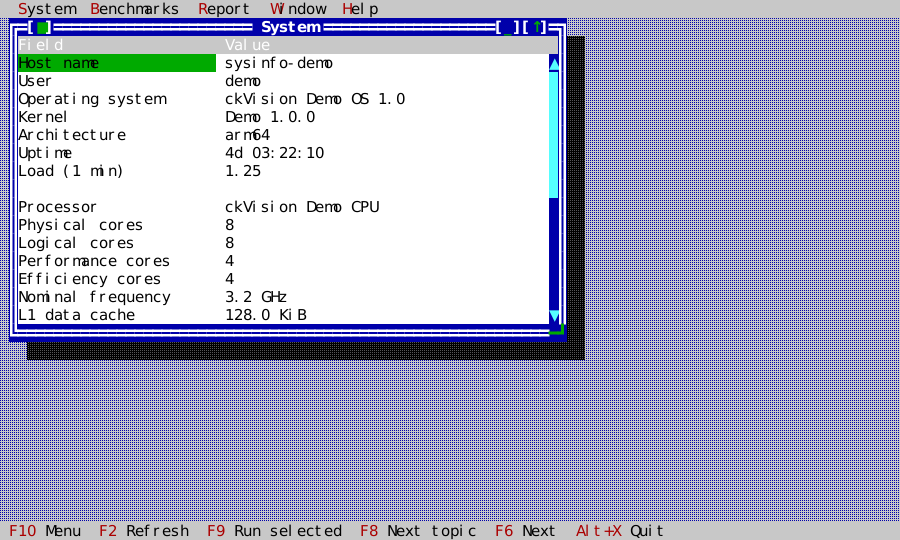
The SysInfo guide covers the complete object boundary, measurement rules, paired graphics/fallback captures, contextual help, and report workflow.
TODO
TODO is the complete local-application reference: a persistent Kanban Board
with task, lane, and named-Board lifecycles; a modeless TextEditor; direct
drag/drop; menus, status, help, themes, and standard window management; plus
one-shot optimistic rebasing and explicit conflict resolution between running
instances.
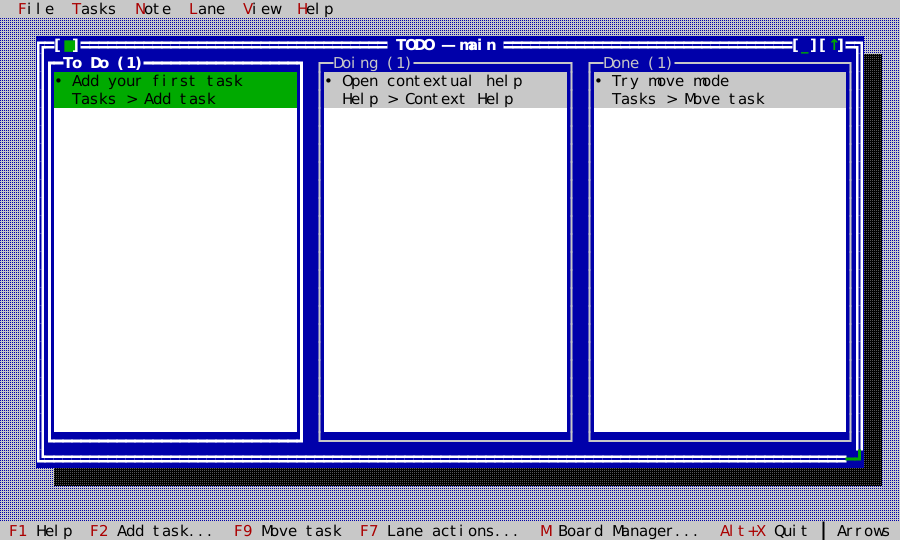
The TODO guide is both a user tour and an implementation map. It documents every key and pointer action, the model/codec/repository/ controller/view boundary, atomic storage and backups, all generated workflow figures and goldens, the codec fuzzer, the real two-process proof, and focused 1,000-task benchmarks.
Every screenshot on this page is generated by its matching
tools/docgen/capture_<name>_screenshots target. Each target builds the shipped
example on a HeadlessTerminal, scripts a short interaction, and renders the
HeadlessTerminal virtual display to SVG via tools/docgen/frame_svg. The
virtual display consumes the exact VT/Sixel bytes
written by Presenter and independently reconstructs styled cells plus decoded
raster pixels; the screenshot path does not read the source Image directly.
In the gallery's Sixel profile, Presenter first writes clean panel-colored blank cells
through the visible image region—never the [image] fallback text—and emits an
explicitly opaque Sixel raster. The SVG stores that decoded raster as one
lossless embedded bitmap, avoiding the hairline transparency artifacts that
adjacent per-pixel SVG rectangles can acquire during PDF conversion; equal
neighboring cell backgrounds are likewise merged so the surrounding panel
remains a clean solid color in PDF output. Recognized box-drawing glyphs are
rendered as cell-edge-aligned SVG geometry instead of font text, preventing
host-font metrics from introducing false gaps at frame corners.
Regenerate them (and this page's HTML/PDF
output) with tools/docgen/generate_docs.sh — never hand-edit an SVG
under docs/generated/.
Every published SVG is gated for freshness.
tools/docgen/screenshot-manifest.txt groups the figures under the capture
tool that draws them, and each group has one <name>_visual_capture test.
Run ctest --test-dir build -R gallery_visual_capture -V: it re-runs the
Gallery's capture into build/test-artifacts/screenshots/gallery/ and fails
when it writes a figure the group does not list, misses one it does, or
writes one that differs by a byte from the published copy.
check_docs.py --screenshots fails on a published SVG that no group lists.
The unit suite separately checks the decoded pixel plane and raw protocol
bytes; the byte/hash-pinned pixel goldens of WP-32A are listed in the
corrective plan.
Standard dialog factories keep their built-in English labels by default and
also accept a widgets::StandardStrings table when an application needs
localized button text or standard window titles. The table covers message-box
buttons, file dialog titles/actions, directory picker labels, the Window List,
and Help Viewer chrome without installing any global mutable localization
state.
Gallery (examples/gallery)
Gallery is the baseline example: a Desktop with a menu bar, a status
line, and two windows, driven entirely through the public ui::View /
ui::Application / widgets::* surface — nothing in gallery_app.cpp
reaches past those headers.
- Menu bar (
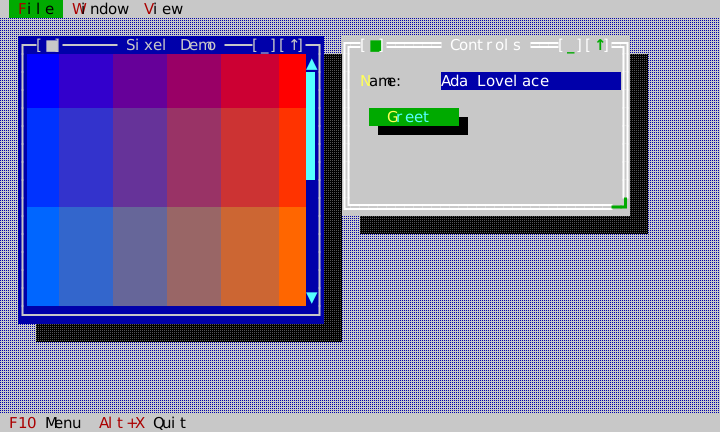
File,Window,View) bound to realui::CommandRegistrycommands, activated via F10 (a bound command, not a MenuBar special case — seeinclude/cvision/widgets/menu.hpp's own file comment for why), with Esc restoring whatever was focused before activation. File → Terminal Report opens the standard live capability and mouse-dispatch dialog, including whether this host actually established pixel mouse. - View → Scheme offers the four built-in schemes — Classic, Dark, Light
and Mono — as the app's own commands (
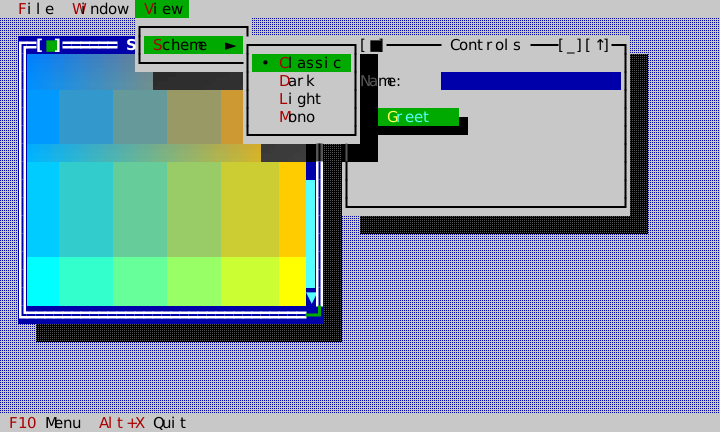
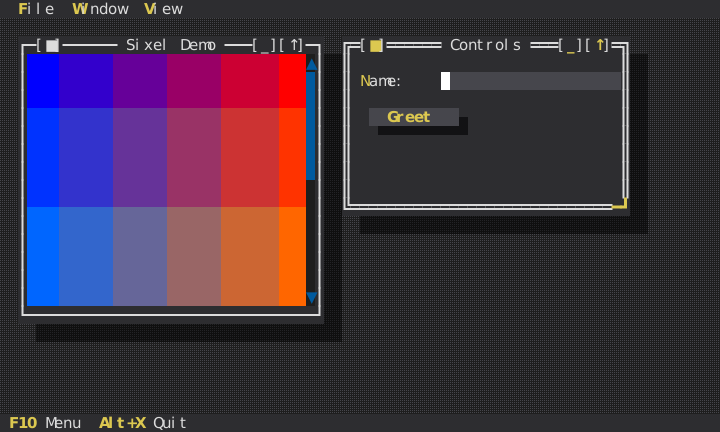
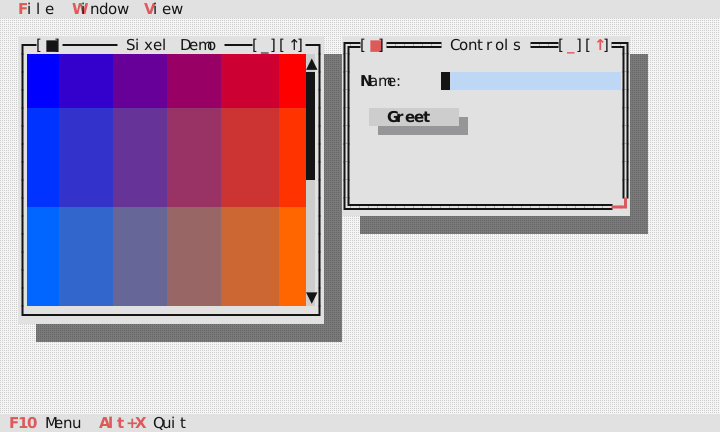
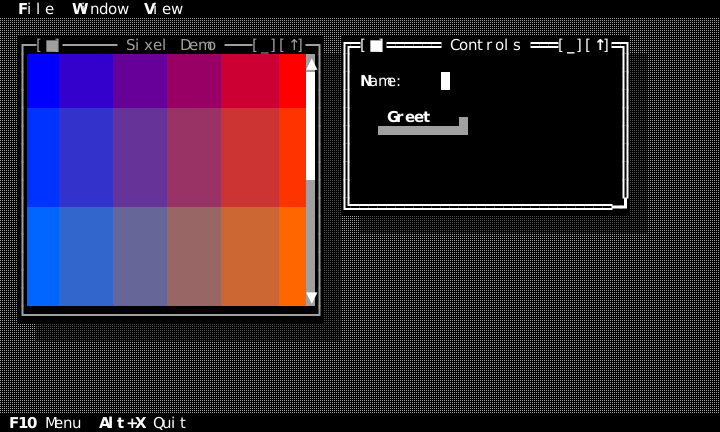
gallery.scheme.classicand so on). Choosing one callsApplication::set_theme, so every window, the chrome and the picture's surroundings repaint in it at once, and the submenu marks the scheme that is showing. The appearance matrix is the reference for every widget in every scheme (D-082); this menu is how a reader of the example sees the schemes on a real application. - Controls window: a
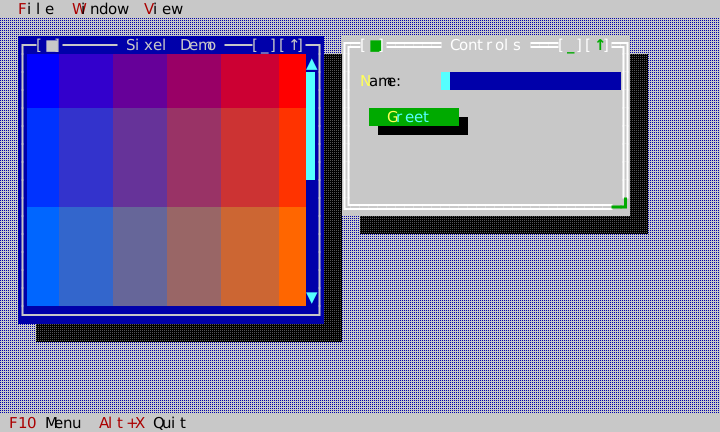
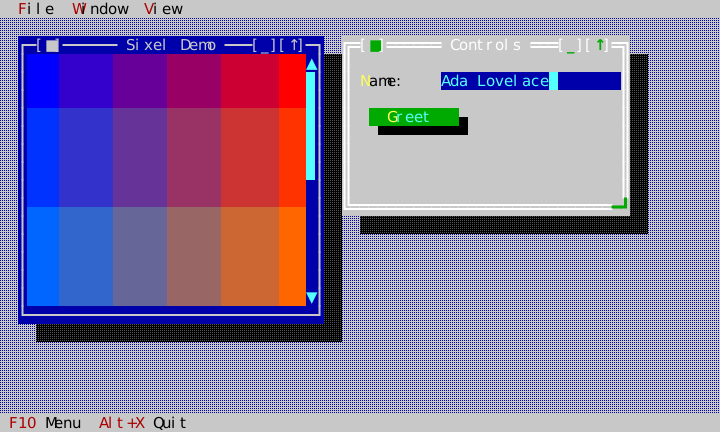
Labelwith a mnemonic, anInputLine, and a defaultButton— Tab traversal, typed text, and a click all reach their target through the ordinary focus/dispatch machinery (ui::Application::dispatch), the same path any application's own widgets use. The name field starts with the focus, so Controls is the active window: focusing a view inside a window activates that window, and the keyboard is never in a window drawn inactive. It stands beside the Sixel Demo window rather than over it, so the active form covers none of the picture. - Sixel Demo window: an
ImageViewshowing a generated RGBA gradient, proving the raster path —Painter::draw_imagethroughscene::Compositor's occlusion slicing throughterm::Presenter's Sixel encoder — actually reaches terminal bytes when the terminal capability advertises Sixel support. The picture is twice as tall as the window, so it sits in aScrollViewport: the wheel over it scrolls a row at a time, and a click focuses the viewport so that Up, Down, PageUp and PageDown scroll it from the keyboard. Each scroll draws the picture again at its new anchor, clipped to the viewport (D-081), and opening View → Scheme drops the menu across the picture's top rows: the picture is cut around the menu and dimmed under its shadow, and closing the menu restores exactly the frame it opened over. This is the image demo of the M3 exit, and Graphics describes what it proves. - Window shadows: both windows cast a real, composited shadow
(
widgets::Desktop::paint_childreninterleavesPainter::apply_shadowwith the z-ordered window paint — see that method's doc comment for why a naive whole-tree post-pass cannot get shadow occlusion right). Shadow coverage is binary: one or several overlapping casters apply the dim transform exactly once. - Move/resize:
Window's own mouse handling supports dragging the title bar to move and any corner grip to resize from that corner, leaving the opposite corner in place and clamping toWindow's declared min/max size. An idle, focused, resizable window marks only its lower-right corner with the single-line grip inside its otherwise double-line frame, and every corner shows its grip while a resize is under way; a non-resizable window keeps all four double-line corners and ignores a grip drag.
What's verified, and how
Every claim above is backed by a real, green test — not just "the code exists":
| Behavior | Test |
|---|---|
| Both windows render, with their titles | test_gallery_smoke.cpp: the_gallery_renders_both_windows_titles_on_first_frame |
| The window holding the focus is the one drawn active | the_window_holding_the_focus_is_the_one_drawn_active |
| Menu bar + status line render | the_menu_bar_and_status_line_both_render |
| Typed keyboard input reaches the field and repaints | typing_into_the_name_field_reaches_it_and_repaints |
| F10 activates the menu bar via the command keymap | f10_activates_the_menu_bar_via_the_command_keymap |
| Esc after F10 restores prior focus | escape_after_f10_returns_focus_to_where_it_was |
| Alt+X quits via the documented shortcut | alt_x_quits_via_the_status_lines_documented_shortcut |
A terminal resize through Application::step repins the menu bar and status line to the new edges | resizing_the_terminal_repins_the_menu_bar_and_status_line_to_the_new_edges |
| A mouse click on Greet presents a modal message box with the typed name, and Enter completes and closes it | clicking_greet_presents_and_completes_a_typed_message_box |
| Sixel bytes reach the terminal and decode into the virtual display's RGBA plane | the_image_window_content_reaches_the_terminal_as_sixel_data_under_full_capabilities |
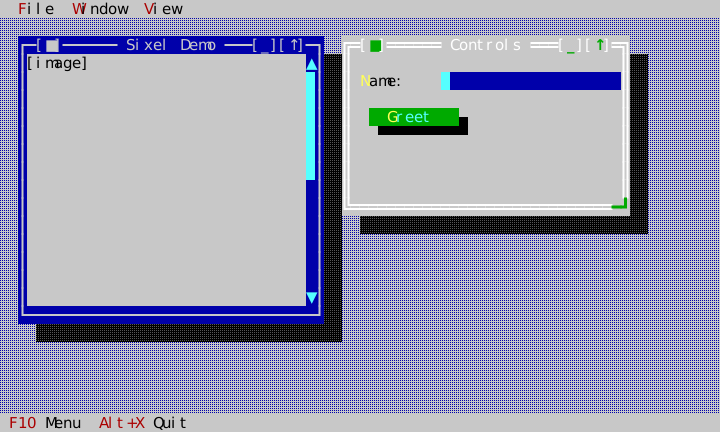
Sixel mode emits no [image] text and decodes to a solid, fully opaque rectangle: the part of the picture the viewport shows | the_image_window_content_reaches_the_terminal_as_sixel_data_under_full_capabilities; sixel_presentation_replaces_fallback_text_with_clean_background_cells |
| The same frame has no raster pixels under NoGraphics | the_same_gallery_frame_uses_only_the_cell_fallback_without_graphics |
| Runtime Sixel → NoGraphics → Sixel changes remove and restore pixels without stale content | runtime_graphics_capability_changes_remove_and_restore_virtual_raster_pixels |
The image demo, played as one script on a fixed-metric Sixel profile and on NoGraphics, matches its pinned symbolic scene, decoded cells and decoded pixel plane at every step (tests/golden/gallery_picture_*) | test_gallery_visual_golden.cpp: the_image_demo_scrolls_its_picture_by_exactly_the_rows_scrolled; the_view_menu_occludes_the_scrolled_picture_and_closing_it_leaves_no_stale_pixel |
| A click then Down scrolls the picture one row, and PageDown a page, each moving its anchor by exactly the rows scrolled and every decoded pixel with it | the_image_demo_scrolls_its_picture_by_exactly_the_rows_scrolled |
| View → Scheme over the scrolled picture leaves no pixel under the menu, dims the picture under its shadow, and closing it restores the frame byte for byte | the_view_menu_occludes_the_scrolled_picture_and_closing_it_leaves_no_stale_pixel |
Each of the four schemes, chosen through View → Scheme, repaints the whole Gallery, and Classic chosen again is the first frame (tests/golden/gallery_scheme_*) | the_gallery_shows_every_built_in_scheme_chosen_through_view_scheme |
| View → Scheme marks the scheme that is showing | view_scheme_marks_the_scheme_that_is_showing |
| Dragging the title bar moves a window; dragging a corner grip resizes it from that corner and leaves the opposite corner in place, clamped to its min/max size; a non-resizable window ignores the grip | tests/test_window.cpp: dragging_the_title_bar_moves_the_window; dragging_the_resize_grip_resizes_the_window_without_moving_its_origin; dragging_the_bottom_left_resize_grip_resizes_while_anchoring_the_right_edge; each_corner_resizes_and_leaves_the_opposite_one_where_it_was; a_top_corner_resizes_rather_than_moving_the_window; resizing_below_the_minimum_size_clamps_rather_than_shrinking_further; resizing_above_the_maximum_size_clamps; a_non_resizable_window_ignores_a_grip_drag |
| An idle, focused, resizable window marks only its lower-right grip; every corner shows its grip during a resize; a non-resizable window keeps double-line lower corners | an_idle_window_marks_only_the_corner_the_convention_marks; every_corner_shows_its_grip_while_a_resize_is_under_way; an_active_non_resizable_window_keeps_double_line_lower_corners |
| A grip drag injected through the terminal resizes a resizable dialog; its bottom-right-anchored button keeps the corner and its all-edges-anchored memo stretches, with pinned before/after frames | tests/test_window_resize_golden.cpp: grip_dragging_a_resizable_dialog_keeps_its_corner_child_in_the_corner_and_stretches_its_filling_child |
| Window shadow cells are actually dimmed (exact expected style) | tests/test_desktop.cpp: a_shadow_casting_windows_footprint_is_dimmed_on_the_desktop |
| A higher window is never dimmed by a lower window's shadow | a_higher_window_painted_afterward_is_not_dimmed_by_a_lower_windows_shadow |
| One or several overlapping window shadows remain one uniform shadow, including the lower-right footprint corner | a_single_shadow_footprint_is_a_non_overlapping_union; overlapping_shadows_are_a_binary_union_not_cumulative_dimming; overlapping_window_shadows_dim_the_desktop_exactly_once |
| A foreground frame crossing a lower window's frame stays a plain foreground border, never a merged junction | a_foreground_window_frame_does_not_merge_with_a_background_window_frame; tests/golden/window_z_order_junction.dump |
Screenshots
Initial frame under the fixed-metrics Sixel profile — menu bar, status line, both windows, and the decoded, fully opaque gradient emitted by Presenter over clean panel-colored backing cells:
The identical initial application state under NoGraphics — no Sixel DCS is emitted and ImageView's mandatory textual fallback remains visible:
After typing a name into the input field:
With the menu bar activated (F10):
The image demo: the picture scrolled a row by the wheel and a page by PageDown, with View → Scheme open across its top rows. The picture is cut around the menu and dimmed under its shadow; closing the menu restores the frame before it:
The same Gallery in the Dark, Light and Mono schemes, each chosen through View → Scheme (Classic is the initial frame above):
| Dark | Light | Mono |
|---|---|---|
 |  |  |
Running it yourself
cmake -B build -DCMAKE_BUILD_TYPE=Release
cmake --build build -j8
./build/examples/ckvision_gallery
Requires a real terminal (macOS Terminal.app, iTerm2, or any VT100+
terminal); Sixel image content additionally requires a Sixel-capable
terminal (iTerm2 with Sixel enabled, or a recent xterm build). To see the
image demo, turn the wheel over the Sixel Demo picture, or click it and
press PageDown, then open View → Scheme over it (Alt+V, then Right) and
close it again with Esc. On an
unsupported terminal, ImageView's mandatory fallback (D-017) still
renders equivalent cell content in place of the image — never a blank
or broken region.
File Browser (examples/filebrowser)
File Browser is the master-detail example: a folder-hierarchy
TreeView in one pane drives a ListView showing the selected
folder's contents in a second pane — a TreeView::on_selection_changed
callback (receiving the newly-selected TreeNode& directly, M10/
WP-22) is the entire wiring between them. It also demonstrates
Desktop::dock_top/dock_bottom (the menu bar and status line
reposition themselves automatically across a real terminal resize,
not just when the application recomputes their bounds by hand — a live
ResizeEvent enters through the terminal and Application::step; the
Application-owned root layout then applies View::fills_root()'s default to
the Desktop, whose own on_resized() repins both docks and reclamps every
window. tests/test_filebrowser_smoke.cpp:
resizing_the_terminal_repins_the_chrome_and_keeps_the_browser_filling_the_desktop
drives this app itself through a grow, a shrink and a return to 80×24; the
general mechanism is covered by tests/test_m8_integration.cpp and
tests/test_root_resize_golden.cpp.) and Window::add_frame_overlay
(the selected directory's full path shown live on the window's own
bottom border — the general mechanism a text editor would use for a
"line: N, col: M" indicator; M10/WP-20's plural, positioned overlays
replace this app's original single-slot set_frame_overlay call with
no change in the app's own observable behavior).
- Real disk access: the interactive binary browses the actual
filesystem via
term::PosixFileSystem— previously the onlycore::FileSystemimplementation anywhere in the repo wasMemoryFileSystem(test-only), so no application could browse a real directory without writing that backend itself first. - Two-pane layout:
widgets::Splitter(M10/WP-19) holding the tree and file-list panes, starting at an exact 50/50 split — the same ratio the app's originalui::Rowwith twoExpandingitems gave, now keyboard-adjustable (Tab to the Splitter, then Left/Right) rather than fixed. - Lazy tree population (M10/WP-22): only the root's own direct
subdirectories are listed eagerly, so it can start expanded; every
deeper level is listed on demand the first time the user expands it,
via
TreeView::on_expand_request.populate_children()infilebrowser_app.cppis the one function both the root's initial listing and every later lazy expansion call — no depth cap needed, since nothing is ever recursed into ahead of the user actually asking to see it. Each node's own full path lives inTreeNode::user_data(astd::anyholding astd::string), replacing what used to be a separate sidecarstd::unordered_map<const TreeNode*, std::string>. - Focus traversal: Tab cycles through the tree pane, the Splitter
(M10/WP-19 — Left/Right there adjusts the pane split), and the file-
list pane — the library's own default keymap (the decision log D-029, M9/
WP-13), with nothing bound explicitly in
FileBrowserApp's own constructor. An application that wants Tab for something else (a text editor inserting a literal tab) keeps that freedom, because a focused view consuming Tab already preempts the keymap by routing order.
What's verified, and how
| Behavior | Test |
|---|---|
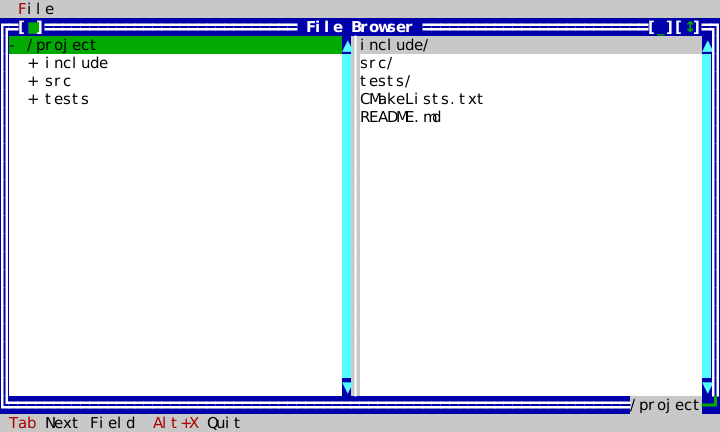
| The tree starts with the root expanded and the file list showing its direct children | test_filebrowser_smoke.cpp: the_tree_starts_with_root_selected_and_the_file_list_showing_its_direct_children |
Directories in the file list are suffixed with / | directories_in_the_file_list_are_suffixed_with_a_trailing_slash |
| Navigating the tree to a different folder updates the file list | navigating_the_tree_to_a_different_folder_updates_the_file_list |
| A nested subdirectory shows up suffixed too | navigating_to_a_folder_with_a_nested_subdirectory_shows_it_suffixed |
| Both panes, the menu bar, and the status line all render | the_first_frame_renders_both_panes_and_the_menu_status_chrome |
| The frame overlay shows the currently selected directory's full path, and updates live | the_frame_overlay_shows_the_currently_selected_directorys_full_path |
| Alt+X quits | alt_x_quits |
| Tab moves focus from the tree pane to the file-list pane | tab_moves_focus_from_the_tree_to_the_file_list_pane |
| The tree and file-list panes start at an even 50/50 split | the_tree_and_file_list_panes_start_at_an_even_50_50_split |
| The panes are children of a Splitter positioned between them | the_panes_are_children_of_a_splitter_positioned_between_them |
| Dragging the Splitter's divider, then Right on the Splitter the press focused, resizes both panes and keeps them contiguous (both through the terminal) | adjusting_the_splitter_resizes_both_panes_and_keeps_them_contiguous |
| A directory never expanded starts with unknown, unpopulated tree children | a_directory_never_expanded_starts_with_unknown_unpopulated_tree_children |
| Expanding a never-listed directory populates it on demand through the filesystem | expanding_a_never_listed_directory_populates_it_on_demand_through_the_filesystem |
| A lazily populated child is itself still lazy until expanded | a_lazily_populated_child_is_itself_still_lazy_until_expanded |
| A terminal grow, shrink and return repin the menu bar and status line, keep the window filling the desktop, and keep both panes spanning it | resizing_the_terminal_repins_the_chrome_and_keeps_the_browser_filling_the_desktop |
The initial, lazily expanded and splitter-moved frames match tests/golden/filebrowser_{initial,expanded,splitter_moved}.dump, and the terminal shows exactly each composed frame | the_initial_lazily_expanded_and_splitter_moved_frames_match_their_goldens |
Screenshots
Initial frame — the root folder expanded, its files and subfolders in the right-hand pane, the current path shown on the window's own bottom border:
After navigating to the src folder:
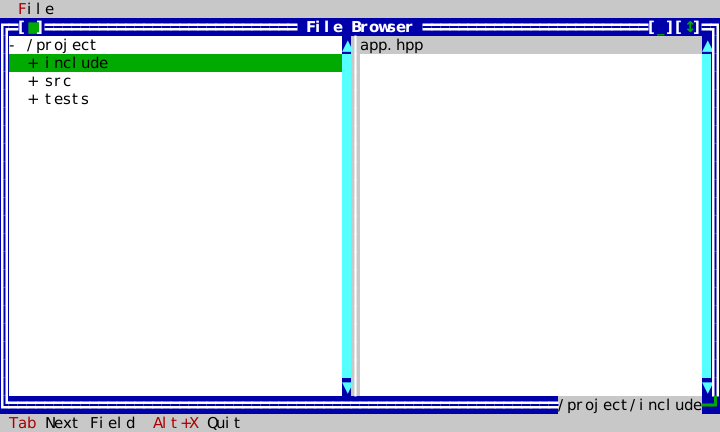
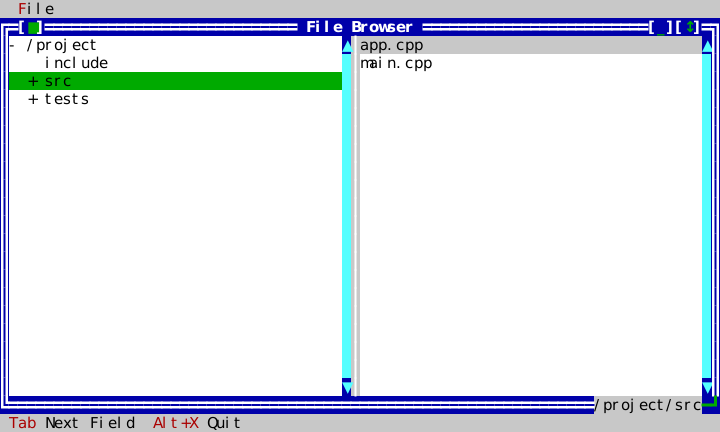
After navigating to the include folder — the file list and the
border's path indicator both updated:
Running it yourself
cmake -B build -DCMAKE_BUILD_TYPE=Release
cmake --build build -j8
./build/examples/ckvision_filebrowser [path]   # defaults to the current directory
WP-36A comprehensive demo suite
WP-36A turns the example directory into a client-facing demo suite with a
checked-in traceability matrix at the example coverage matrix. hello,
gallery, and filebrowser remain the established integration examples;
layouts, forms, workbench, and graphics add focused coverage for the
major public layout, dialog, data/text, and raster surfaces.
The suite is:
| Example | Purpose |
|---|---|
hello | Minimal one-screen application: desktop, File menu, status line, command presentation, modal info dialog, and clean loop ownership. |
gallery | Main showcase shell for chrome, forms, windows, commands, message boxes, the scheme switch, and an ImageView scrolled in a ScrollViewport. |
filebrowser | Practical master/detail app over a real or injected filesystem: tree/list coordination, Splitter, frame overlays, menu/status chrome, and lazy expansion. |
layouts | Resize-focused layout lab: Row, Column, Grid, Dock, AnchorPane, Overlay, Splitter, alignment, margins, frame overlays, shrink, and recovery. |
forms | Dialog and form patterns: descriptor dialogs, validation veto, default/cancel buttons, focus restore, localized StandardStrings, help/status context, option groups, combo boxes, and close veto. |
rootdialog | The M4 form demo: a materialized descriptor dialog mounted directly as the Application root, with Label, StaticText, Button and InputLine, and Tab/Shift-Tab/Alt+mnemonic/Enter/Esc scripted end to end. |
echo | Input echo: every key, key release, mouse, paste, focus and resize event the application receives, and each host capability change, as one decoded line. |
workbench | Application template: Memo, TextView links (OSC 8 hyperlinks where the host renders them), InputLine history, Table, TreeView, ListView, TabControl, Progress, clipboard-ready editing, commands, and status presentation. |
graphics | Raster and capability demo: ImageView, Canvas, Sixel/fallback switching, raster occlusion/scrolling, cell/pixel mouse, and deterministic degradation. |
Each example keeps the existing tested-artifact shape:
- A public-API object graph in
examples/<name>/<name>_app.{hpp,cpp}. - A thin terminal
main.cpp. - A headless script suite that drives the same object graph.
- Screenshot/visual capture states where the example teaches visible behavior; the exhaustive state/theme visual matrix is WP-38 scope.
- A row in the checked-in coverage matrix: public widget/layout/capability → example → scripted interaction → golden or visual artifact → documentation section.
Layouts (examples/layouts)
ckvision_layouts is the resize lab. Its single window combines every layout
container in one public object graph: Row, Column, Grid, Dock,
AnchorPane, Overlay, Splitter, and Window::add_frame_overlay; the Row
centres its label and keeps a margin above its text, and the Column end-aligns
its label and keeps a margin either side of its paragraph.
tests/test_layouts_smoke.cpp renders the labels, adjusts the splitter
through keyboard dispatch, and resizes the terminal to prove docked chrome and
anchored content recover
(layouts_example_reflows_docked_chrome_and_anchored_content_after_terminal_resize).
One script drives each container family through the terminal alone: resizes
to a wide 100×30 and a narrow 64×24, then F5 and Right at 80×24. At 80×24,
wide and narrow it asserts every family's child bounds and compares that
family's region of the frame with tests/golden/layouts_<family>_<size>.dump;
the keyboard state is pinned as tests/golden/layouts_keyboard.dump.
| Family | Test |
|---|---|
| AnchorPane (the window content) | layouts_anchor_pane_keeps_each_container_on_its_anchored_edges_through_resizes_and_keyboard_zoom |
| Row and Column alignment and margins | layouts_row_and_column_apply_per_child_cross_axis_alignment_and_margins_through_resizes |
| Grid | layouts_grid_divides_its_width_evenly_and_places_spans_and_centred_cells_through_resizes |
| Dock | layouts_dock_carves_top_then_left_and_fills_the_centre_through_resizes |
| Overlay | layouts_overlay_keeps_its_fill_base_and_manual_badge_as_it_moves_through_resizes |
| F5 zoom and Splitter keys through the terminal | layouts_keyboard_zoom_and_splitter_keys_reach_the_example_through_the_terminal |
Run:
./build/examples/ckvision_layouts
Forms (examples/forms)
ckvision_forms demonstrates form-level client patterns: InputLine,
CheckGroup, RadioGroup, editable ComboBox, descriptor dialogs with accept
validation veto, localized StandardStrings, modal message boxes, help viewer
presentation, status hints keyed by help context, common date/time/numeric
components (DatePicker, TimePicker, an editable SpinBox, Slider), a
Wizard with its step indicator, Cancel and typed on_complete, and a
vetoable window close protocol. The smoke suite opens the descriptor dialog
through the example object graph, verifies invalid accept is vetoed, completes a
valid dialog, and checks the close-veto path plus the WP-36B component state.
Run:
./build/examples/ckvision_forms
Root Dialog (examples/rootdialog)
ckvision_rootdialog is a form that is the whole application: the ROADMAP's
M4 form demo. It has no Desktop, no Window and no frame. A
materialize_dialog tree is mounted directly under Application::root(),
inside a surface that paints the dialog background and holds a StaticText
introduction, the two InputLine fields with their mnemonic Label buddies,
and the button row (OK, Cancel, About).
A Window gives a hosted dialog its accept_request and cancel_request.
Without one, the root surface answers the same three keys itself:
- Enter accepts through
validate_dialog. A failing field is marked, takes the focus and keeps the form open, and the status line says why. Editing a marked field clears its mark; the next accept judges it again. - Esc cancels without validating.
- Alt+letter reaches a field through its label, or presses a button,
through
activate_control_mnemonic.
Tab and Shift-Tab need nothing: the Application's default keymap walks the
root tree in declaration order. The OK and Cancel buttons carry the same
accept and cancel as their on_press, so a click is the same request as the
key. Alt+X leaves the form as Esc does. An accepted form prints name= and
email= lines on standard output once the terminal is restored and exits 0.
A cancelled form prints nothing and exits 1, so a shell script can ask its
question through it.
tests/test_rootdialog_smoke.cpp plays the key behaviour as event scripts.
Each key is injected through HeadlessTerminal and followed by
Application::step, and the tests assert the focus and the outcome after each
beat. One session scripts Tab, Tab, Shift-Tab, an Enter that validation vetoes,
typing, Alt+E, Alt+N and an accepting Enter. The other types into a field and
cancels with Esc. The scripts live in tools/docgen/rootdialog_script.hpp,
and generate_event_script_goldens plays the same scripts to write the pinned
frames, tests/golden/rootdialog_*.dump. The generated_golden_bytes test
regenerates those frames on every host and compares the bytes.
Run:
./build/examples/ckvision_rootdialog
On Windows, the same example is built with WindowsTerminal; run
build\examples\Release\ckvision_rootdialog.exe from a VT-capable terminal.
Echo (examples/echo)
ckvision_echo is the classic terminal input echo: the ROADMAP's M3
interactive echo demo. Use it to check a host's input by hand. It shows which
chord ckVision decodes a key to, whether the host reports key releases, pixel
positions or focus changes, and whether a paste arrives bracketed. The whole
screen is one custom View that takes the focus. A header gives the title,
the quit chord (asked from the keymap, never written down) and the copyright
notice. Below it the view writes one numbered line per event, newest last:
     4  key     press   "a"  U+0061
     6  key     press   Ctrl+"a"  U+0061
     8  key     press   Ctrl+Right
    16  key     press   Esc
    18  mouse   move    left        cell 12,5
    21  mouse   down    left        cell 4,4  Ctrl+Shift
    23  paste   23 bytes  "hello\tworld�\nline two"
    24  focus   lost
    26  resize  100x30
- Keys go through
View::on_keyand are observed, not consumed. After its line is written, a key bound to a command still runs it. That is how the standard quit chord ends the program, and Tab and Shift+Tab still reach focus traversal, which finds only the echo view. A character key is shown quoted, with its codepoints. A named key is shown by its canonical name. A key whose release the host will report says so. A kitty host's releases and standalone modifier keys arrive throughView::on_key_releaseandaccepts_standalone_keys(). - Mouse reports over the view are shown in cells, with pixels when the host reports them, and with the modifiers held.
- A bracketed paste is one
TextEvent, shown with its length and its text escaped. The line shows what paste sanitization kept: a carriage return arrives as U+FFFD, a tab and a line feed as themselves. - Focus lines come from the view taking the focus and from the host's focus reports, which the Application forwards to the focused view.
- Resize lines come from
on_resized. The view fills the root, so its new size is the terminal's. - Host capabilities open the log with the profile the session starts on,
and
Application::set_capability_changed_handleradds a line for each change a probe reply brings.
The view keeps the newest 1,000 lines. ckvision_echo transcript.txt also
appends every line to a file as it is made, so a hand check leaves a record.
tests/test_echo_smoke.cpp drives the same object graph with raw host bytes.
The bytes are fed through HeadlessTerminal's input decoder, never as
pre-built events, so the test checks what the decoder makes of real
sequences: characters and C0 bytes, CSI and SS3 keys, an Alt chord, a lone Esc
resolved at the quiet deadline, SGR mouse reports, a bracketed paste, focus
reports and a resize. The script lives in tools/docgen/echo_script.hpp, and
generate_echo_goldens plays it to write tests/golden/echo_initial.dump and
tests/golden/echo_scripted.dump. The generated_golden_bytes test
regenerates both on every host.
Run:
./build/examples/ckvision_echo [transcript.txt]
Workbench (examples/workbench)
ckvision_workbench is the practical application template. It combines
TabControl (View → Tab presentation selects Underlined, Framed or Compact),
Memo, InputLine history, TextView links (OSC 8 hyperlinks
on a host that renders them), TreeView, multi-select ListView, sortable
Table, ComboBox, and
Progress inside ordinary menu/status chrome. WP-36B extends it with
SearchBox, ToolBar, CommandPalette, BreadcrumbBar,
PropertyInspector, NotificationCenter, and Tooltip, with a
TooltipController explaining the palette and the inspector when the pointer
rests on them, the focus arrives, or Ctrl+F1 asks. The smoke suite
verifies the text page, activates the public TextView link path, switches to the
data page, and checks the table/tree/list/combo/progress/common-component
surface. Its theme scripts open View → Edit theme…, change one role and
accept, and check that the terminal's frame shows the new colour, that the
theme file holds the theme's text and that a new session starts with it; a
cancelled editor changes and saves nothing, and an unreadable theme file is
reported while the classic theme stays.
Run:
./build/examples/ckvision_workbench
Graphics (examples/graphics)
ckvision_graphics isolates raster behavior from the broader gallery:
ImageView shows caller-owned RGBA image data, Canvas derives its backing
pixels from caller-supplied cell metrics, both expose full mouse events, and
the same frame is tested under Sixel and NoGraphics terminal profiles. Its smoke
suite clicks both views with SGR-Pixels reports on a pixel-mouse terminal
profile and checks that each callback receives the cell, the pixel, and the
picture pixel image_pixel_at() maps it to. The
exhaustive paired visual captures remain WP-38 release-gate work; WP-36A adds
the executable public-path example and coverage matrix row.
Run:
./build/examples/ckvision_graphics
Spin (examples/spin)
ckvision_spin is the animation reference: File ▸ New opens a window on any
of six rotating solids — two wireframes and four shaded ones — and each window
keeps drawing itself while the application stays responsive. It is the example
to read for three separate questions.
Where the work happens. examples/spin/mesh.cpp and
examples/spin/renderer.cpp are ordinary library code: no view, no terminal,
no clock, and no thread. RenderService owns the worker threads and is the
only file that crosses between them, in the one direction the architecture §9
sanctions — a request goes out carrying everything the renderer needs, and the
finished Image comes back through Application::post. Nothing on a worker
thread touches a View, a Theme, or a Terminal.
How the redraw is driven, and why it stays responsive. One
Application::start_timer serves the whole application, armed when the first
window opens and gone when the last one closes, so an idle Spin has no timer at
all and step() blocks on input like any other program. It is a one-shot that
arms the next one after it has run: the loop can never owe a backlog of ticks,
which is exactly what a repeating timer delivers after a stall, all at once. A
tick that finds a window's previous frame still rendering asks that window for
nothing, so at most one frame per window is ever outstanding — the posted-work
queue is bounded by the number of open windows however slow the host is.
Angles come from the injected Clock, so a skipped frame costs smoothness and
never speed. And the interval itself follows the loop: a tick that arrives much
later than it asked for widens it, down to a documented floor, and ticks
landing on time ease it back. The cost of an overloaded moment is a slower
rotation rather than a sluggish application. Presenting a finished frame is one
ImageView::set_image call — that invalidates one view, the window repaints its
own backing store, the compositor touches the cells that changed, and Presenter
re-encodes one raster. Nothing in the example forces a full redraw.
What a readout on the frame costs. Each window carries its delivered frame
rate in the bottom-right of its own border, through
Window::add_frame_overlay — the same mechanism widgets::EditorWindow uses
for its "Ln 1, Col 1" indicator. FrameReadout is worth copying for any value
that changes as often as the content does: it pulls its text in draw()
instead of being pushed a string per frame (a pushed set_text() is a
size-hint change, and the window re-lays-out its overlays for each one), keeps
a fixed width so that re-layout never happens at all, draws in its window's own
frame role so the border reads as one line, and is invalidated by the frame it
describes rather than by a clock of its own — so both land in the same
presented frame.
Why it looks like part of the window. Sixel carries no alpha channel, so
each frame is painted on the background its own window currently resolves —
ckv.window.frame.active or .inactive, through resolved_color — and the
same role is set as the view's fallback override, which is what a terminal
without graphics then shows instead. The frame is rendered at exactly
cells × terminal_cell_pixels(), so it lands on whole cells and neither
stretches nor leaves a margin; a resize simply produces the next frame at the
new size. The renderer also keeps each frame inside the host's reported Sixel
register budget, because a picture that exceeds it makes the encoder quantize
the whole image — the background included — to its fallback color cube, and
the seam that was invisible becomes a visible rectangle.
test_spin_smoke.cpp pins all of it: the renderer's background fidelity,
centring, framing, determinism, and color budget with nothing else running; and
then, on a HeadlessTerminal, that a window presents its frame as a raster,
re-renders at its own pixel size across a resize, paints on the window's own
background, keeps exactly one outstanding frame per open window, runs its
animation clock only while a window is open, never leaves the loop owing a
backlog of ticks however long it stalled, widens and recovers its frame
interval, shows the delivered rate on its own border in a box that never
changes width, and drives the identical object graph to the documented cell
fallback on a terminal without graphics.
Run:
./build/examples/ckvision_spin
Adding another example
New examples should follow the WP-35 public-surface rules enforced by
example_hygiene: construct Desktop through context rather than theme/role
constructor plumbing, use typed insertion surfaces instead of
static_cast<widgets::...>, declare each command id/chord once, use
widgets::CommandPresentation when a menu or status surface needs
surface-specific wording for the same command, and present every dialog or
window through a call whose name states its modality (present_modal_*,
present_modeless_*, exec_modal_*).
examples/<name>/<name>_app.{hpp,cpp}— the object graph, takingui::Application&in its constructor, exposing whatever accessors a headless test needs (seegallery_app.hpp's own accessor list for the pattern). Give every interactive example a visible About command and build its body withexamples::about_text(...)so the project copyright notice remains present and exact.examples/<name>/main.cpp— aPosixTerminal+PosixClock+Application, astep()loop, nothing else.examples/CMakeLists.txt— one moreadd_library(<name>_app STATIC ...)/add_executable(ckvision_<name> ...)pair, followinggallery_app's.tests/test_<name>_smoke.cpp— drive the SAME<name>_apptarget headlessly; this is what makes the example a tested artifact rather than a demo nobody runs in CI.- A section on this page, plus a
capture_<name>_screenshotstool undertools/docgen/if the example's states are worth showing.
Workbench also offers View → Toolbar presentation: Compact, Padded and Framed command buttons, with explicit action groups in the Text page.
Progress Lab (examples/progress)
Run ckvision_progress to configure all progress display variants and measurement options.
See advanced progress for controls and examples.