 CK Utilities
ck-files
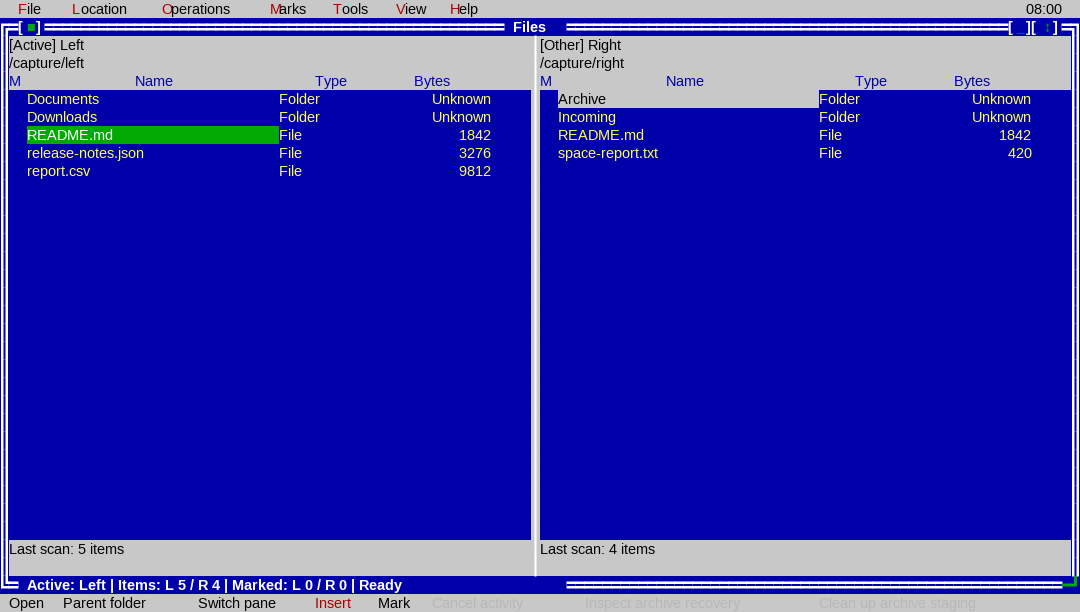
ck-files is the CK Utilities two-pane file manager, designed for the fast
location-to-location workflow of Norton Commander and Midnight Commander while
keeping every mutating operation reviewed and capability-checked.
Usage
ck-files [LEFT_DIRECTORY [RIGHT_DIRECTORY]]
Without arguments, both panes start from the current directory. Use
--help (or -h) for the command-line synopsis. Under the Tools menu,
ck-files also provides integrated recursive search (Alt+F7), directory
tree & sizes (Alt+T), file diff and reviewed directory synchronization,
ordinary archive browsing/creation/extraction (ZIP, TAR, TAR.GZ), an embedded
syntax-aware editor (Ctrl+E), an interactive embedded terminal (Ctrl+O),
direct-argv command execution and user menus, remote SFTP/SMB browsing, and
CKARV01 volume-archive inspection and verified restore. Shell commands are
never used as a fallback for native file operations.
On Linux and macOS, put --osc52-clipboard before the directory arguments
when your terminal permits OSC 52 clipboard writes. Without the option,
copied paths stay in the Files clipboard. On Windows, Files uses the native
clipboard.
Workflows and dialogs
Reviewed Copy and Move (F5 / F6)
Every Copy or Move prepares a verified plan before touching the destination. When an incoming file matches an existing target, the review dialog highlights the conflict, lists preservation checks, and lets you choose a new name, skip conflicts, or cancel.
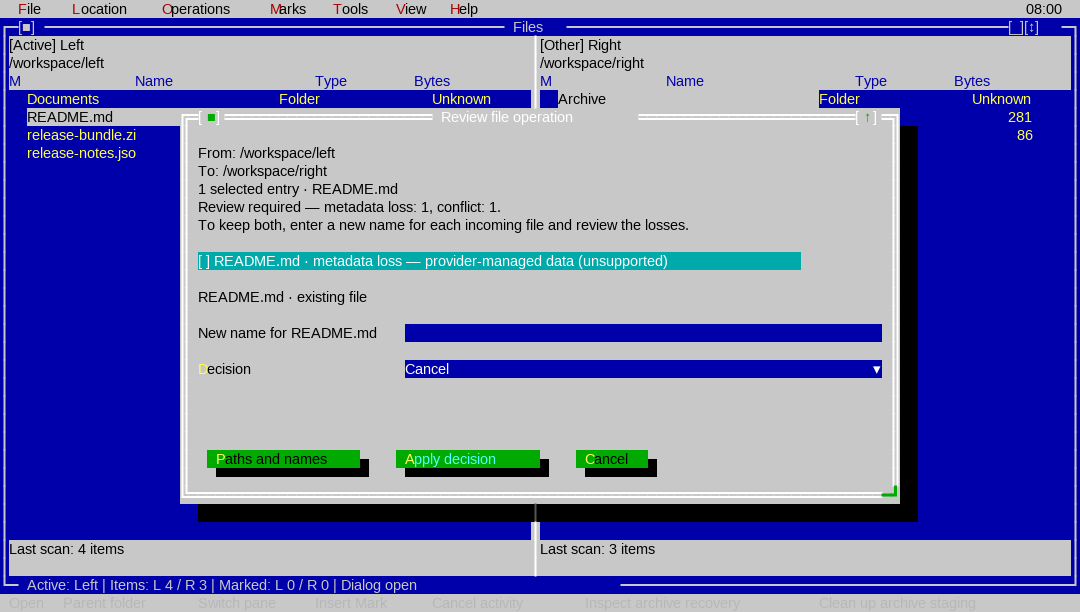
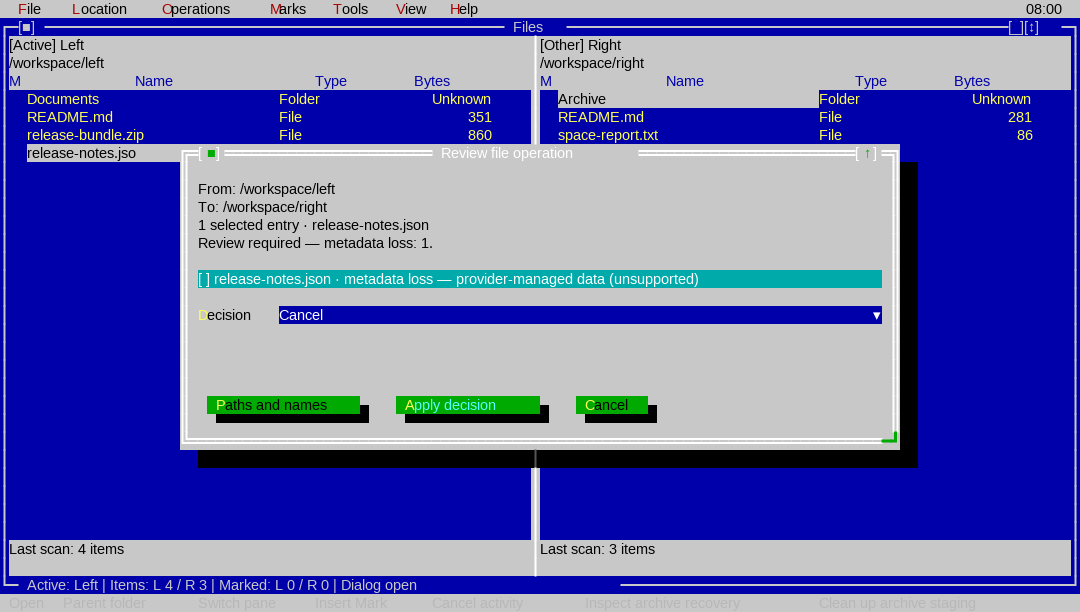
Non-conflicting Move operations present the same explicit pre-flight review before starting the worker job.
Bounded Preview (F3) and Embedded Editor (Ctrl+E)
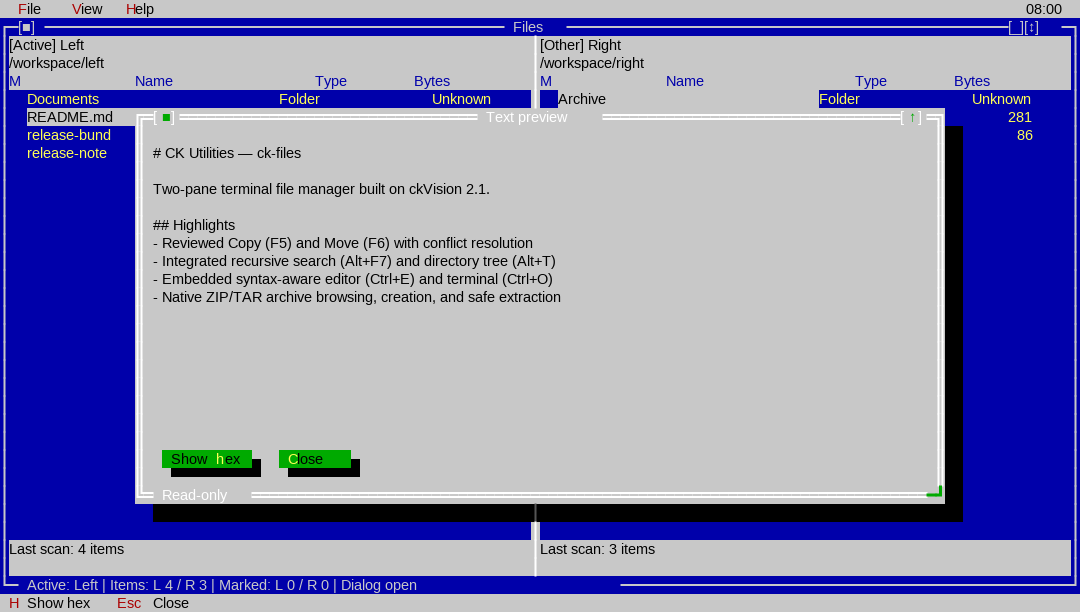
Press F3 or Enter on a regular file for a bounded read-only preview with one-key switching between text and hexadecimal views.
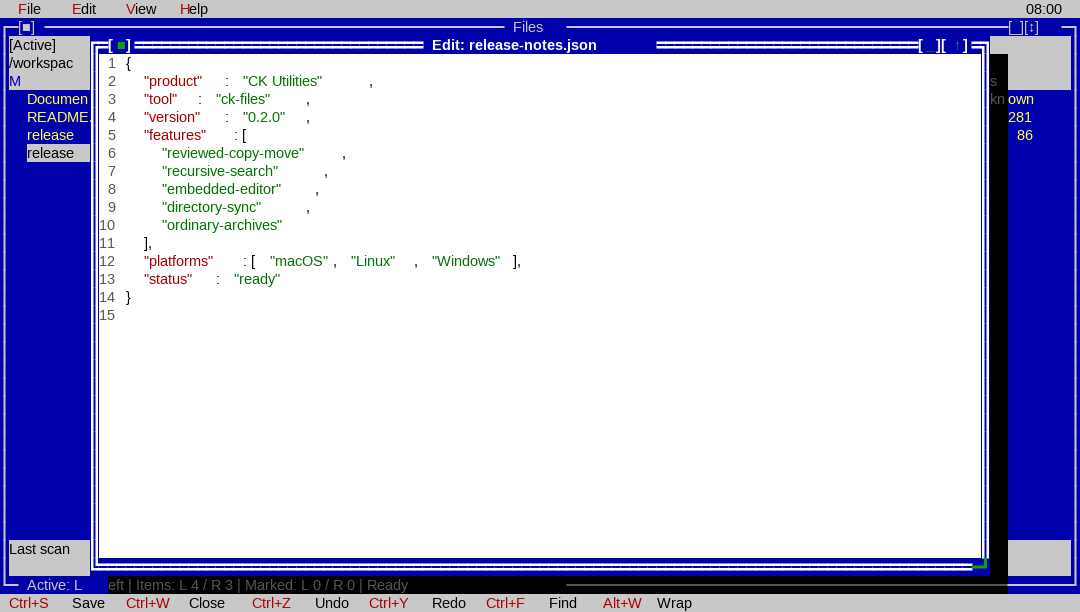
Press Ctrl+E (or Tools → Edit file) to open the embedded syntax-aware editor with line numbers, unsaved-change protection, and external-modification detection.
Integrated Recursive Search (Alt+F7)
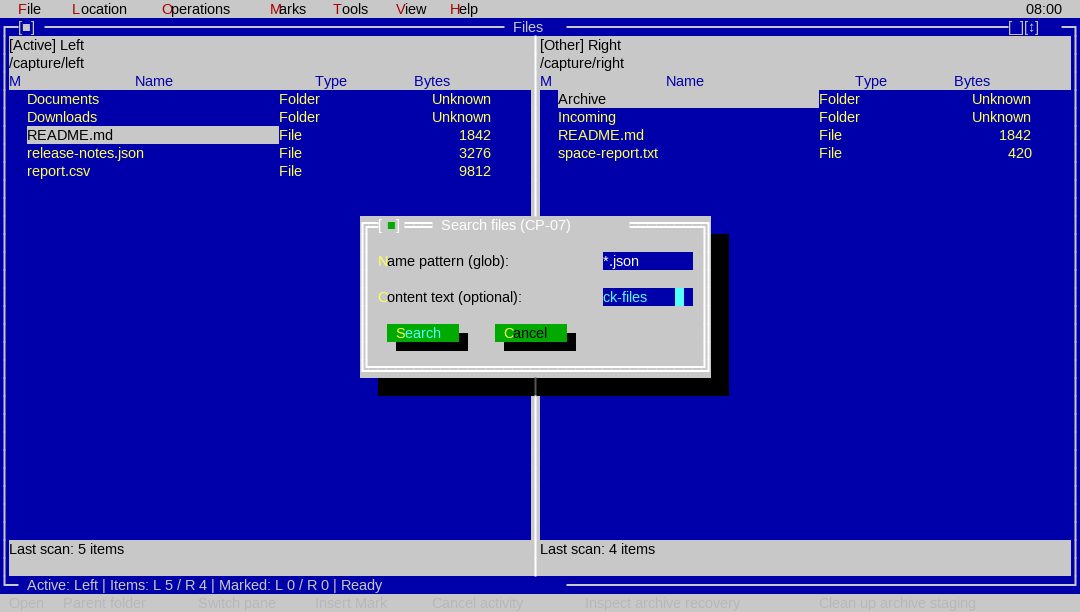
Tools → Search files (Alt+F7) searches beneath the active pane by filename glob or regex and optional bounded content text.
Compare, Diff, and Reviewed Directory Synchronization
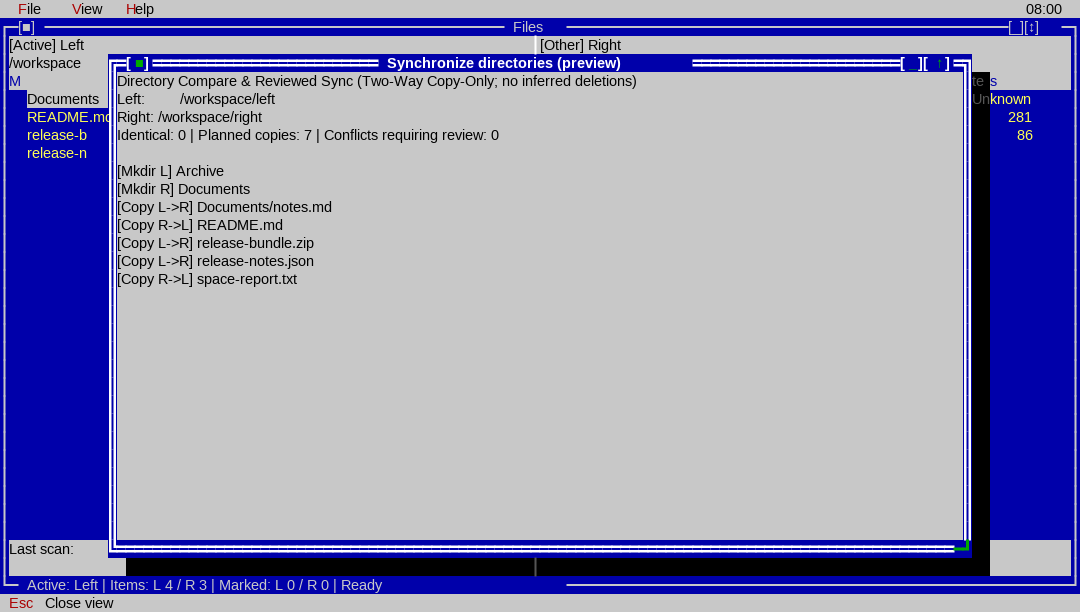
Tools → Synchronize directories compares both panes by thorough content and produces a reviewed two-way copy-only plan without inferred deletions.
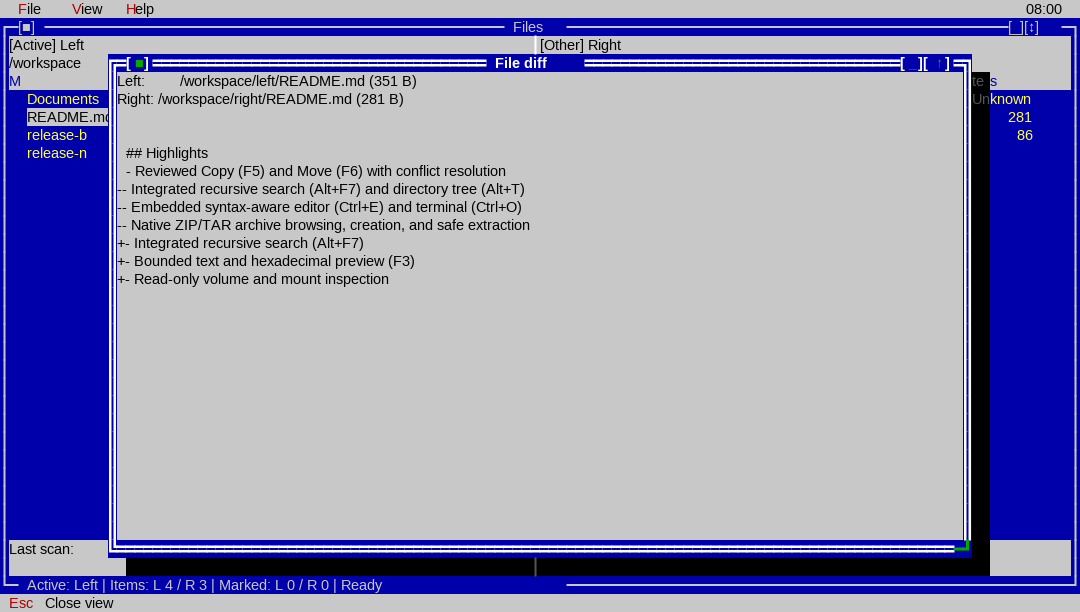
Tools → Diff files compares the selected files in the left and right panes with unified text diffs or hexadecimal binary diffs.
Ordinary Archives (ZIP / TAR / TAR.GZ)
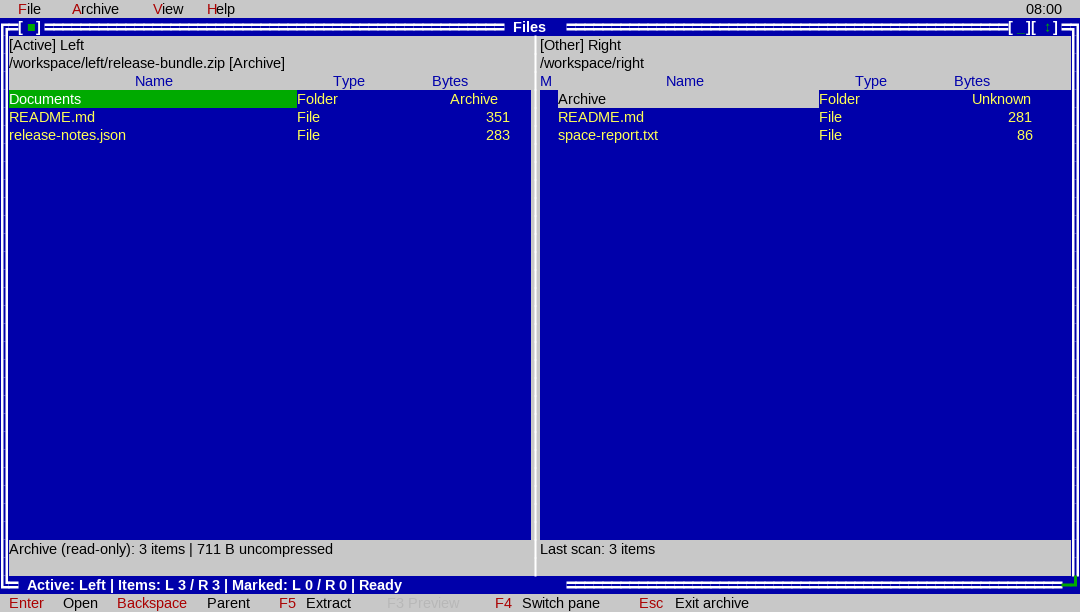
Press Enter on a ZIP, TAR, or TAR.GZ archive (or choose Tools → Browse archive) to open it directly inside the active pane like a folder, while the other pane stays free as an extraction destination. While browsing inside an archive, the menu bar switches to Archive and the footer updates to archive-specific actions (Enter Open folder / preview member, Backspace Parent / exit archive, F5 Extract to other pane, F3 Preview, F4 Switch pane, Esc Exit archive).
Volume and Mount View (Backspace at root)
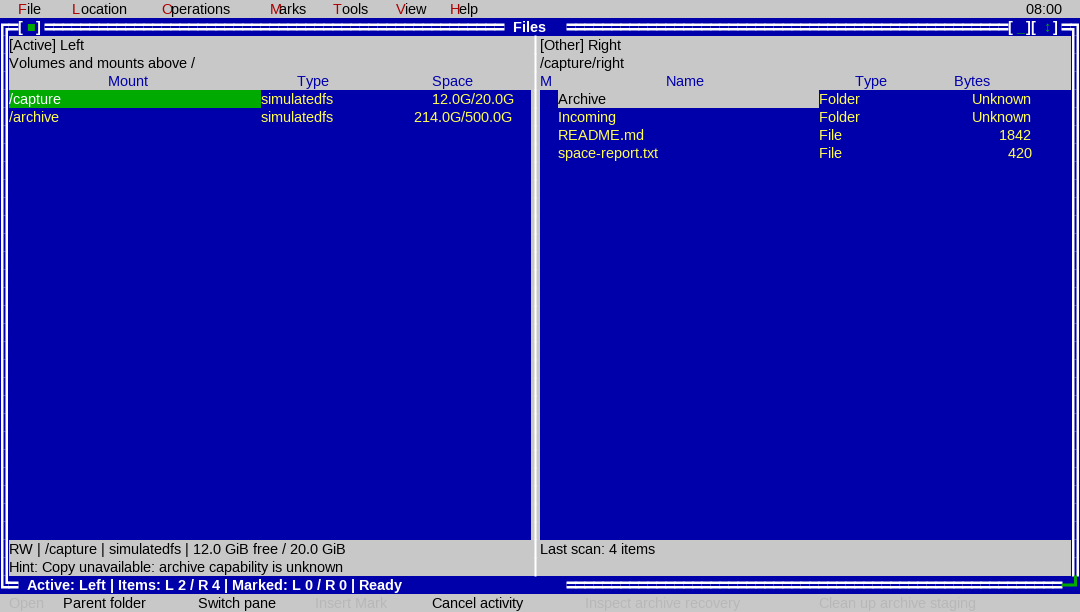
At a filesystem namespace root, Backspace opens the read-only volume and mount view in that pane, shown below. It is a system-information view, not a writable parent directory.
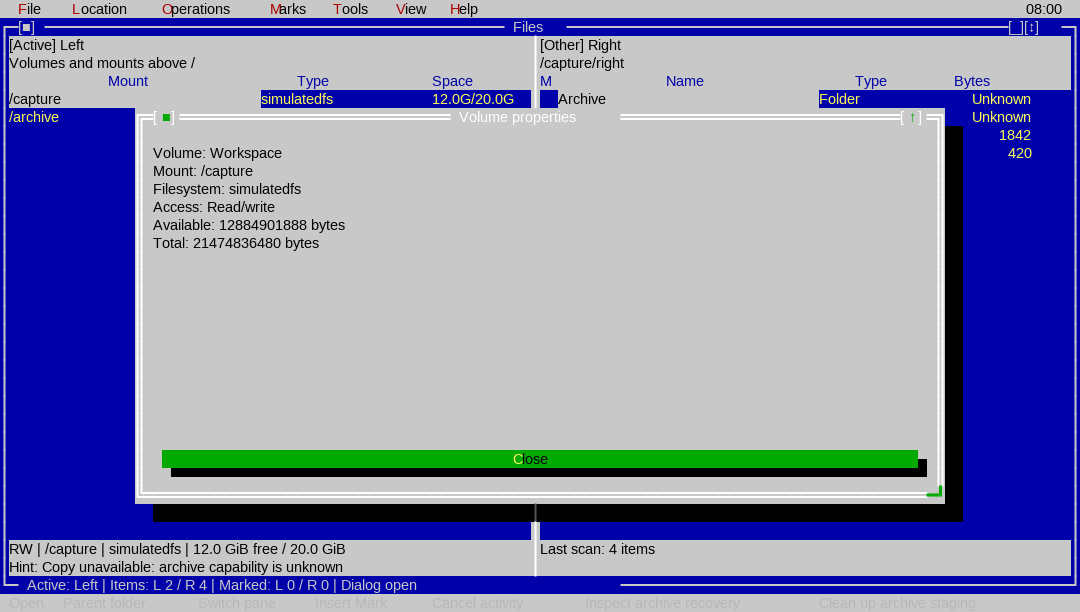
Location → Properties displays the selected mount's exact capacity.
Features
- Two independent panes with an explicit active-pane indicator, resizable layout, narrow-terminal fallback, location fields, breadcrumbs, history, bookmarks, parent/home/root navigation, and Windows drive/UNC entry.
- A known read-only mount disables commands that would change it and shows the reason in the active pane. Navigation, preview, and marking remain available. You can copy from a read-only mount to a writable destination.
- At a namespace root, pressing Backspace once replaces that pane's file rows with a read-only volume and mount listing above the normal filesystem boundary. Mount shows the mount/drive name; Type shows the filesystem format; Space shows free and total capacity together. The selected row's footer adds its mount, filesystem, space, and read-only state. Long labels end in an ellipsis. In narrow panes, Space and then Type give way to the Mount column. Location → Properties shows the full selected mount, filesystem, access state, and exact available and total bytes. It identifies values retained from the last successful scan if a refresh fails. The view uses ordinary read permissions and never exposes volume rows as operation targets. Windows lists volumes without a drive letter or folder mount by volume GUID. Refresh updates that pane's volume list and checks for archive recovery records. It keeps the selected mount when it can match it after refresh. Esc cancels a pending scan. During a refresh, the previous volume rows stay visible until a later refresh succeeds. You can keep browsing in the other pane while the volume list loads. If reopening the filesystem root fails or you cancel it, the selected volume stays visible. If the volume list cannot be refreshed, the previous values stay visible and Copy stays disabled until a refresh succeeds. Copy starts volume archive planning on the archive worker only after native identity, live-read capability, destination, and private-journal checks pass. It remains visibly disabled otherwise, with the specific reason in the active-pane status. A read-only destination mount disables Copy. The archive worker checks the mount again before writing. Approval creates a versioned sparse filesystem archive with a manifest and file data. The worker holds the captured data in private, unnamed scratch storage while you review it. That storage needs room for the captured data extents until the archive has been written to its destination staging file. The review shows consistency, logical/data bytes, sparse shape, links, and explicit preservation losses, including ACLs and extended attributes. Open Review losses to browse the full list. Details or Enter shows the exact path and explanation for the selected row. Acknowledge records its acceptance, and Back returns to the archive summary. Files requires acknowledgement of every listed loss before creation. During creation, the pane footer shows the bytes written and then the bytes read back for verification. Verification covers the entire logical archive, including its sparse holes. Esc requests cancellation. The footer reports the outcome after the worker finishes. Live archive creation has passed native Linux ext4, XFS, and Btrfs fixtures, Windows NTFS/ReFS fixtures, and macOS APFS sparse archive creation + verified restore fixtures. Changing focus during planning keeps the reviewed source and destination panes. The worker keeps the source mount root and destination directory open through approval. If either was replaced or the archive name was taken, Files asks for a new review. Live capture also stops when it observes a file or directory change while reading the source. A new review builds a fresh capture. After confirmed publication, Files displays the result in the original destination pane and refreshes it when the pane still shows that directory. The worker verifies the archive data, checks both routes again, and publishes through the held folder. If the folder moves during publication, Files displays the path only if it can verify the reviewed location. Files reports indeterminate durability when a flush or journal step after publication cannot be proven. If storage fills or a quota is reached before publication, the pane status reports that failure. On startup and after each archive attempt, a bounded read-only scan checks private archive journals through the held journal directory and reports if that directory was replaced. Each attempt has its own journal ID, so completed records remain available when Files restarts. Copy remains disabled until the scan completes and no journal needs reconciliation. At approval, the archive worker checks recovery again and uses the same inspected directory for the new journal. Snapshot providers remain capability-gated. Inspect archive recovery is a read-only list of every journal in the latest scan, with journals needing review at the top. Details or Enter opens the selected journal's recorded source and destination, state, and required action. A separate worker boundary refuses restart cleanup because the original archive creator's live ownership is unavailable. Clean up archive staging stays disabled with that reason. Restart records are available for inspection only. See the volume archive plan.
- Asynchronous directory loading with completion, bounded results, refresh, folders-first display, sorting by name/type/size/date, hidden-item toggle, and quick filename filtering. Ctrl+R keeps the cursor and marks on entries whose identity Files can still verify. The pane footer reports lost marks and a lost cursor binding. Update or clear the marks before starting Copy or Move. Choose Marks → Use current row to confirm the row under the cursor if its previous binding was lost. Copy and Move use the marked entries when marks are present. Reveal or clear marks hidden by a filter to enable either command.
- Keyboard and mouse navigation, focused-row identity, mark/unmark, range selection, select all, invert, clear selection, and an always-visible exact source count for operations.
- Bounded read-only text and hexadecimal preview, properties, and path copy. Enter or F3 reads up to 64 KiB from the selected regular file. A valid UTF-8 preview opens as text with Show hex available. Binary or unsafe text opens as hex. The footer identifies a partial preview. Location → Copy path copies the focused entry's absolute path. A native name that cannot be expressed as ordinary path text uses the reversible Exact Names format from the location editor. Files reports whether the system clipboard accepted the copy or the terminal received a request.
- Rename, create-folder, create-empty-file, hard-link, and qualified symbolic-link actions with strict name validation. New files are created exclusively relative to the held pane directory, flushed before success, and followed by an acknowledged listing refresh; duplicate names are refused as a changed destination. Hard links are regular-file-only, identity-bound, no-replace mutations, flushed before success, and currently target the selected file's pane. POSIX symbolic links store an opaque target without normalization or traversal; Windows keeps this command disabled until handle-relative reparse publication is qualified. Inspect link target reads bounded POSIX link or Windows reparse metadata from the held object without following or executing it; opaque Windows payloads remain explicitly opaque. Case-only renames and platform-specific name rules are capability-checked rather than silently normalized.
- Press Esc to cancel while Files prepares a copy or move plan. The review shows From, To, and the selected entry count once planning finishes. A plan is capped at 1,024 entries, counting the selected folder and its descendants. The operating system may reach its open-file limit sooner because the review holds an identity handle for each source and shares the process's open-file allowance with directory scans and both panes. Open Paths and names to scroll through the full paths and every selected name. The review identifies the source files affected by conflicts or preservation losses. For a batch of individual files, Keep existing targets and skip conflicts leaves the occupied targets and their sources in place. Files transfers the other items once you acknowledge their listed losses. You can acknowledge all listed losses with one checkbox. Keep both with reviewed names gives each incoming file a new name in the receiving pane and keeps the existing target. Files checks the new names against the destination before writing. Publication uses the filesystem's no-replace operation if a name becomes occupied during transfer. Choose another destination opens the location editor for the receiving pane. Files asks for a fresh review if the approved transfer changes. Copying a folder onto an existing folder of the same name opens a review of their contents. The merge preserves destination-only files. The worker offers Use source and Use newest for regular-file conflicts when it can verify target retention. Use newest keeps the target when times tie. Set one decision for the folder and override it for individual conflicts. Previous versions appear in Operation recovery.
- Cancellable worker-owned jobs with honest progress, per-item outcomes, source/destination identity revalidation, durable journal boundaries, and explicit committed, retained, skipped, failed, and indeterminate results.
- Same-filesystem moves use identity-bound native rename when qualified.
Cross-filesystem moves use copy, independent stream verification, durable
destination publication, and only then qualified source retirement (using
Linux
F_SETLEASE, WindowsFILE_SHARE_READ, or macOS before/after metadata stability verification; modified, hard-linked, or unqualified sources remain retained). Non-sync UI Copy/Move operations also acquire cross-process root leases when source and destination roots are disjoint, blocking competing processes cleanly. Tree operations never follow links or silently include new children. - Move to Trash / Recycle Bin (F8) confirms the selected entry (or all marked entries, including directories) and revalidates each identity on the worker. An unsupported entry stays in place, and an uncertain outcome is reported for review.
- Inspect operation recovery shows a read-only scan of copy, move, and recursive-delete journals. The scan runs at startup and after file operations. Interrupted moves with exact name receipts show their source and destination names. The review also reads replacement-retention journals in that folder and shows the original target name, the recorded or proposed retained name, and the recorded destination folder when available. Malformed, truncated, legacy, ambiguous, or untrusted records remain visible as reconciliation items. From Operation recovery review, Files exposes worker-owned Resume recorded job, Retry unresolved items, Restore retained version, and Dispose retained version actions, which re-inspect the journal from the private root, verify live parent and object identities (parking any colliding destination safely during restore), execute the linked transfer/retirement or retention action, and retire the resolved journal. Clean up operation staging remains disabled for standalone restart inspection because live creator ownership is required. When a Copy or Move overlaps an unfinished, retained-source, or untrusted operation journal by native source or destination identity—even after a rename—planning and execution hold the transfer and open Reconciliation required instead of bypassing the unresolved record, displaying the backend's reconciliation disposition, per-item review classification, and retry-lineage status. Ordinary-copy journals also retain the independently verified whole-file SHA-256 receipt at the Copied and Verified boundaries; it is used for future reconciliation only, never as pathname-based authority.
- Delete permanently (Shift+F8) requires an explicit confirmation and supports individual entries, directories (including recursive directory deletion on Windows, macOS, and Linux), and batches of marked entries. Directory deletion reviews a frozen inventory and revalidates each entry before removal, preserving links as boundaries and keeping children that appeared after review.
- Preservation and capability reporting for data streams, extended attributes, permissions and ACLs, ownership, timestamps, flags, links, sparse/compressed storage, names, provider-managed objects, and filesystem boundaries. Unknown or unavailable preservation is a reason to stop, skip, or choose another destination—not a silent success.
- Shared suite help, themes, configurable shortcuts, visible menu alternatives, durable display settings and exact native bookmarks, and CLI help/version behavior. Settings are versioned, bounded, private and written atomically in the background. Rapid changes save the latest complete state; quitting drains accepted changes before exit. Invalid settings and failed or conflicting writes are reported. An uncertain save is not reported as saved or blindly retried; any final save error prints after the Files screen closes.
Saved settings larger than 1 MiB remain unchanged. Files starts with defaults; changes stay in memory, and a final save error is reported after the screen closes. Startup reading uses the same opened file for its bytes and revision.
Default commands
| Key | Action |
|---|---|
| Enter | Enter the selected directory or preview the selected file |
| Insert | Mark or unmark the focused entry |
| Backspace | Go to the parent directory, show volumes at a namespace root, or leave the volume view |
| Ctrl+L | Edit the location |
| Right | Accept the location editor's current completion proposal |
| Ctrl+F | Open view options |
| F3 | Preview |
| F4 | Switch panes |
| F5 | Copy |
| F6 | Move |
| F7 | Create folder |
| F8 | Move to Trash / Recycle Bin (single, directory, or marked batch) |
| Shift+F8 | Delete permanently (single, recursive directory, or marked batch) |
| F2 | Rename file or folder |
| Shift+F2 | Compare directories |
| Ctrl+U | Swap panes |
| Alt+I | Open active folder in other pane |
| Marks menu | Mark / Unmark by pattern |
| Esc | Cancel the current activity or dismiss the dialog |
| Operations menu | Create empty file |
| Operations menu | Create hard link |
| Operations menu | Create symbolic link (qualified POSIX adapters) |
| Operations menu | Inspect link target (qualified link/reparse rows) |
| Operations menu | Resume recorded job / Retry unresolved items / Restore or Dispose retained version |
| Ctrl+R | Refresh |
| F1 | Context help |
| Alt+X | Quit |
Use Alt+O to open Operations and Alt+L to open Location without function keys. Under Location, use Add bookmark (D) to save the active pane's location and Open bookmark (K) to choose one of that pane's saved locations. Highlight an unavailable menu command or click its disabled footer action to see the reason in the active pane. View > Commands opens the command palette, where you can also highlight a disabled match to see its reason. In the volume view, press Backspace to return to the filesystem listing.
While Files is reading or checking storage, including for location completion, Quit offers Stay or Stop activity and exit. Completed changes remain in place. Stopping may wait for storage to respond.
Operations > Inspect archive recovery and Operations > Inspect operation recovery open bounded read-only reviews when their startup scans find matching
journals. Operations > Clean up archive staging and Operations > Clean up operation staging remain disabled for restart inspection because live ownership
of the originally created object is required. Their unavailable reasons appear
in the command status. The inspect actions never resume, delete, replace, retry,
or retire a source.
New archive journals retain the exact destination address in native
encoding for future identity-bound reconciliation; legacy journals without
that evidence remain inspect-only.
All actions also have visible menu or dialog commands, and shortcut bindings can be reviewed through the suite configuration UI. Completion retains ckVision's Right-to-accept behavior. If folder completion fails, the location dialog shows a short reason, including access denial or a completion limit. The entered address and both panes stay unchanged. Editing the address clears the previous warning; a successful proposal can still be accepted with Right.
Platform qualification and safety boundary
The Files implementation is cross-platform and refuses unsupported operations
explicitly. Current qualification records document the exact platform matrix:
The backend has qualified Windows Recycle Bin moves for regular files and
directory trees. Backend macOS and Linux qualification includes same-device
native Trash transactions with restore metadata, plus a write/search-only
.Trashes root on macOS and a foreign /dev/shm mount on Linux. Files offers
Trash for supported individual entries and has no in-app Restore action. The
current macOS terminal verifier has
qualified Alt+X, resize, and terminal-mode restoration for xterm-256color,
xterm, and vt100; the Windows ConPTY contract has qualified launch, drawing,
and clean Alt+X shutdown for the installed utility set. The same three
profiles pass for all ten utilities in the Linux aarch64 archive. A Linux terminal run copied a private ext4 mount into a sparse archive and
verified the reconstructed file against the source hash. On macOS APFS, ordinary
and sparse volume-archive publication uses private O_CREAT | O_EXCL | O_NOFOLLOW
staging, fsync/F_FULLFSYNC, atomic renameatx_np with
RENAME_EXCL | RENAME_NOFOLLOW_ANY, post-publish identity verification, and
parent directory fsync; cross-volume move source retirement verifies
before/after BasicMetadata (identity, link_count == 1, size, timestamps,
mode, and owner) and fails closed on change. Because macOS XNU provides no
public held-descriptor link (O_TMPFILE/linkat) or kernel-enforced same-UID
writer/rename exclusion lease, macOS publication and cross-volume move stability
operate under a non-adversarial same-UID threat model (a concurrent adversarial
process running under the same UID is outside the macOS isolation boundary).
Native snapshot providers and the remaining filesystem and desktop acceptance
checks are still in qualification.
The operation plan is not a global transaction and does not promise rollback
after a partial failure. Cancellation stops new work at a safe boundary and
reports completed effects. Process-crash recovery (SIGKILL / TerminateProcess
at copy-staging and move-journal boundaries) and kernel I/O fault handling
(ENOSPC, read-only mounts, and Linux dm-error/dm-flakey tests) are
qualified separately from host power-loss guarantees; universal losslessness is
never claimed. Recovery verifies identities and journals before offering
inspect, cleanup, or revalidated retry; it never automatically deletes an
artifact or source by pathname.
See the Files implementation plan, contracts, and qualification evidence for the precise guarantees and remaining release gates.