 CK Utilities
ck-find
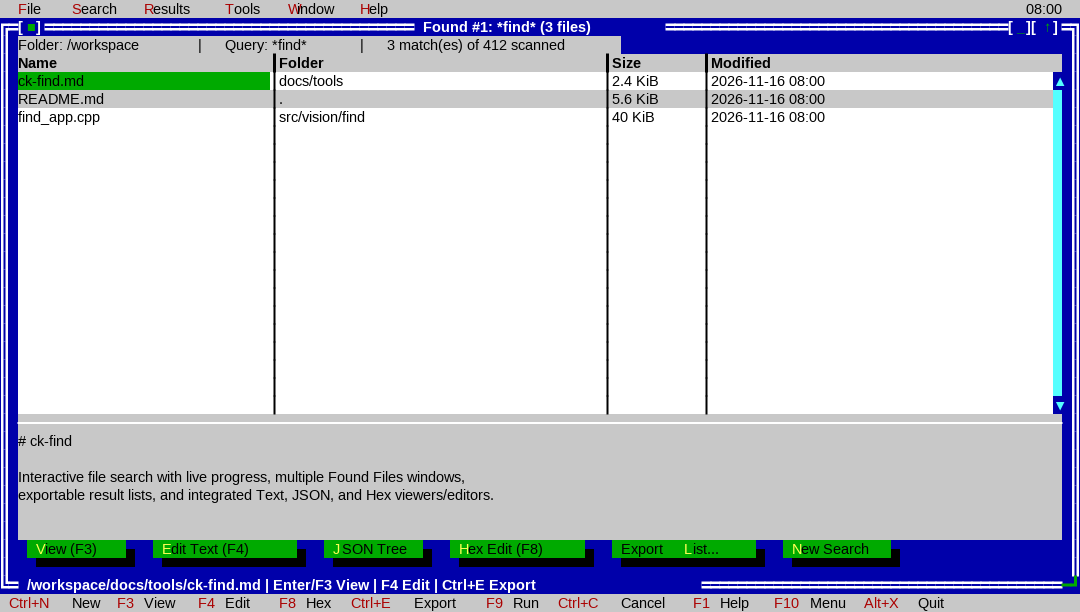
ck-find is the interactive ckVision file-search desktop utility. Launching
ck-find opens directly on the Find Files search prompt with focus in the
filename/pattern field: typing a pattern such as *.txt and pressing Enter
immediately starts a recursive search from the current directory, displays a
cancellable live Search Progress dialog, and opens a sortable Found
Files window on the MDI desktop.
Usage
ck-find [DIRECTORY] [PATTERN]
Use ck-find --help for the command-line synopsis and ck-find --version for
package metadata. Optional positional arguments pre-populate the starting
directory and file pattern.
Features
- Zero-click launch to search: Opens directly on
File name or pattern:so typing*.txt(or a filename substring) and pressingEnterstarts a recursive search immediately without extra setup dialogs. - Live search progress dialog: Displays an animated progress bar, scanned
entry and folder counters, live match count, active directory, and instant
Esc/Cancelsupport. - Multiple Found Files windows: Each completed search opens its own
sortable MDI result window (
Name,Folder,Size,Modified) with a live split-pane preview; tile, cascade, or switch across multiple searches from theWindowmenu. - Export result lists: Export any Found Files window's sorted file list to
a
.txtfile (Ctrl+EorFile → Export found files to text...). - Integrated viewers & editors: Preview and edit matched files directly on
the
ck-finddesktop using ckVision and CK Utilities components — Text/Hex preview (F3), structured JSON Tree view & node editor, syntax-highlighted Text/Markdown/JSON editor (F4), and a 16-column virtualized Hex editor (F8) with fingerprint-checked atomic saves (Ctrl+S). - Advanced filters, presets & saved searches: Filter by exclude globs, file
type presets, modification date ranges, size bounds, symlink policy, and
maximum folder depth (
F7), or save/load reusable search specifications. - Power-user
Toolsmenu: Inspect and copy the equivalent POSIXfind(1)command (Ctrl+G) or run explicitly confirmed bulk actions.
Safe actions
Deleting an individual file from a Found Files window or running a bulk
specification action requires explicit confirmation and never deletes
directories. On macOS, Tools → Bulk specification actions... also supports
two fixed read-only sandboxed templates (ckvision.file-info and
ckvision.sha256) executed with direct argv under /usr/bin/sandbox-exec
(network and file writes denied, five-second timeout, 16 KiB per-file limit,
64-path cap) and displays the captured output in an audit report window.